Review: Canon PIXMA MG7120 All-In-One Printer
Today I have the opportunity to review an all-in-one printer, scanner and copier unit from Canon. The PIXMA MG7120 prints photos, CDs, pictures, and documents, and it does all of it well. It comes in a number of colours. This is the one I got from Canon:
 My wife liked it because it’s a great shade of red. And she likes red a lot. If red isn’t for you, it also comes in brown, black, and white.
There are no buttons on the printer. Instead there is a 3.5″ touch screen and touch sensitive surfaces:

Here is a shot of the touch screen as well as a couple of the buttons which are lit up. It makes for a sleek looking printer. I should also note that it’s very compact and you should have no problem finding someplace to put it. In terms of the touch screen, you can navigate on it using taps and swipes just like your smartphone. That’s a good call as it’s a metaphor that most understand.
Now the setup of the printer is pretty easy. Once you take it out of the box, all you have to do is plug it into power. The touch screen will lead you through the setup and it saves you from having to read the picture based sheet that comes with the printer. Now the first thing you have to do is to put the six printer cartridges in. You know it’s in properly because they light up:

Then it will go through the rest of the setup which includes calibrating the ink cartridges which requires a couple of special sheets of paper that Canon supplies. Once that’s done, you get to the next part which is adding it to your wireless network. It will find your wireless access point and allow you to enter the password. The whole setup process is very easy and anyone can do it. One thing to note is that it does have Ethernet and USB ports to allow you to connect it directly to your PC or to your network if you don’t want to or can’t leverage the wireless capabilities. After that, you can go to your computer and install the drivers and software for the printer. Now I’m on Mac so I didn’t even have to use the CD that comes with the printer as OS X takes care of the printer drivers for me. Though I did have to download the latest scanner driver which wasn’t a big deal. Now I should note that if you install the software that comes with the printer, there’s some powerful scanning and printing software to allow you to fully leverage the printer’s capabilities. So you might want to do that if you plan on using every aspect of the printer.
Now it has two paper trays. The lower one is for 8.5″x11″ paper and one is for smaller paper such as 4″x6″ and 5″x7″ photo paper and if you flip it over, it has a tray so that you can print on CDs and DVDs that have a surface to allow printing. So this printer is very versatile. In terms of printing, it prints at a maximum resolution of 9600 x 2400 dpi. Not only that, it uses 6 colours (pigment black for text printing, yellow, cyan, magenta, dye black, and gray. The latter two to enhance photo quality. And all the inks are archival quality inks) to print in colour for the best possible colour reproduction. I tested printing from my MacBook Pro using photos onto plain paper and text from Microsoft Word. Even on its highest quality settings, this printer was quick. It only took a couple of minutes to print a photo and text prints were very speedy as well taking way less than a minute to print a page. Not only that, it will automatically do double sided printing. That’s a very nice feature as that can save you paper. The quality at its highest setting was very good on plain paper for both text and photos. The PIXMA MG7120 also is AirPrint compatible. But one thing to note is that when I tested printing pictures from my iPhone 5, it only allowed me to print the pictures from the upper tray where the 4″x6″ photo paper was. E-mails and other documents only came from the lower tray where the 8.5″x11″ paper was. You had no choice in the matter. But the results from the picture were very, very good.
Now on to the scanner. I scanned this magazine cover that was in pristine condition from my MacBook at 600 dpi. If you want to see it at full resolution, click the image. I should warn you that it’s almost 30MB in size, but it will show you the quality that the scanner is capable of:
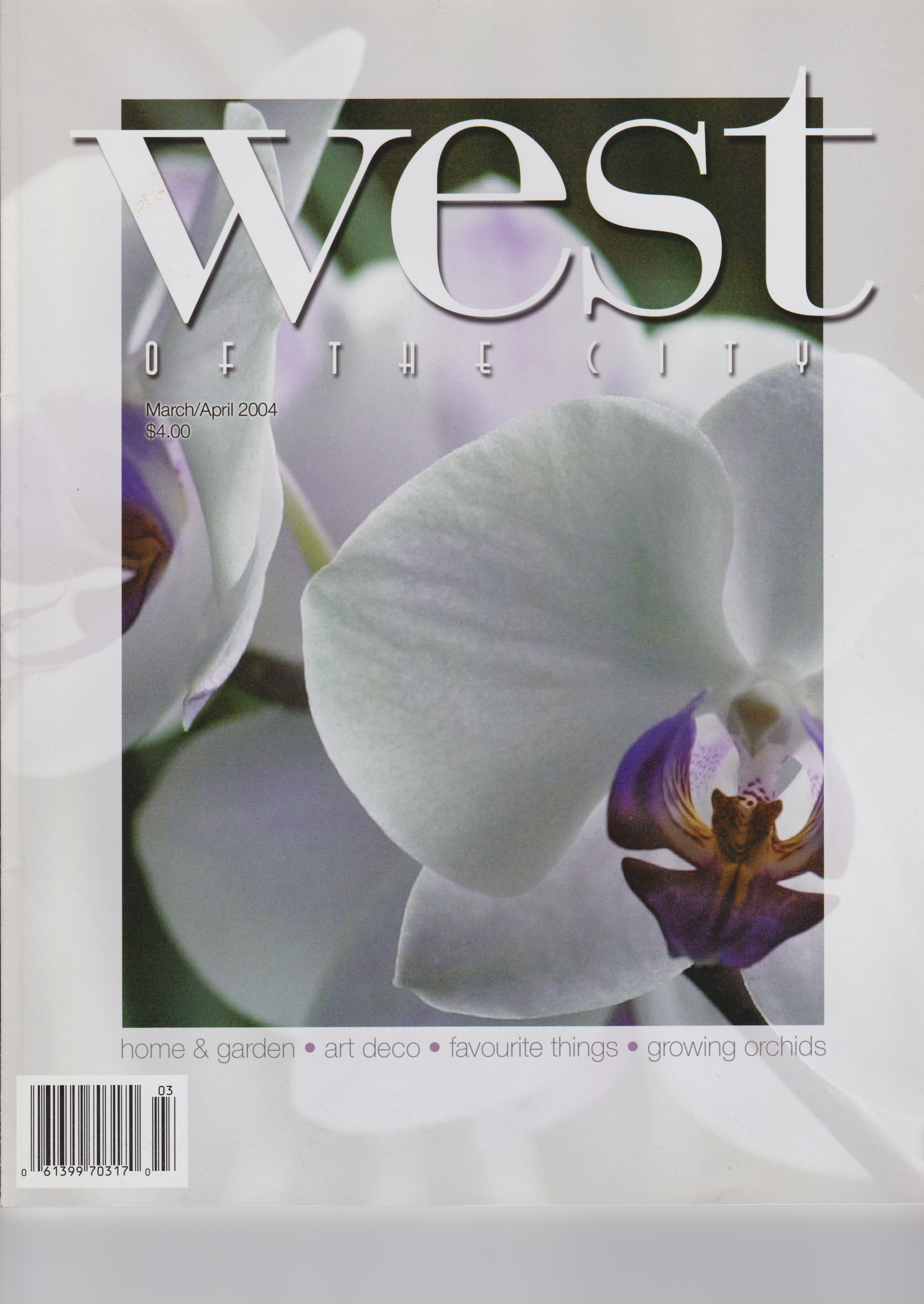
Now this is a big image, but you can see how good the detail is as well as the colour quality. You’ll have no complaints about the scanner.
The PIXMA MG7120 also allows you to print from and scan to memory cards, scan as an attachment to an email, to a PC, or a network drive. You can preview images on its touch screen. The memory-card reader supports formats in the SD/SDHC, Memory Stick, Microdrive, xD/Picture Card families, and even CompactFlash. That’s handy. Not only that, it supports printing from Pixma Cloud Link, which lets you print pictures from online photo albums, office templates, and more, even without a computer. There’s also support from Google Cloud Print, which lets you send documents to your printer from any Web-connected computer, smart phone, or device. It also supports PIXMA Printing Solutions (PPS), which lets you print and scan photos or documents from your mobile device. You can even print from afar, by sending an email to a dedicated email address for the printer. It will also print from Wireless PictBridge compatible cameras.
Some other thing that I noticed about the printer:
- Once I got it onto my network, it offered to update the firmware for the printer. That’s a good feature as it takes all the guess work out of maintaining the printer.
- The printer not only turned itself on automatically when you print, but the tray for holding paper that has already printed automatically opened. Nice touch! It also has a power save mode so that you don’t run up your electric bill.
- The touch screen makes it easy to use any of the functions and all the menus are easy to navigate and understand.
Now, to thing that you care about most, the price. The MSRP is $199.99. That’s a very good price for a printer that I thought was very easy to set up and is very capable. My wife wanted to keep it because she liked the print quality and the colour (For the record, I don’t get to keep most of the things that I review). So if my wife gave it a thumbs up, and I give it a thumbs up, it has to be good. If you need a printer, scanner and copier for your home or small office, the Canon PIXMA MG7120 should be on your shopping list.
December 24, 2013 at 3:26 am
Hi I would like to know the CD is windows and I have a mac so it can not read. It says that it is not compatible with my mac. I also want to know if I have to uninstall the old printer from my husbands PC which is a wireless one also . I am having really lots of problems with the printer so far need help.
December 26, 2013 at 12:58 am
I also have a Mac. After the printer setup I went to the Canon web site and downloaded the necessary drivers and software as a single disk image. With this I was able to use this printer/scanner on my Mac.