Review: Ooma Office
I am going to do something different and say this right up front. Ooma has a winner with Ooma Office. It’s easy to set up, it’s easy to manage, and the call quality is outstanding. Here’s why I feel that way.
Let’s start with the setup. First, you need to surf to myoffice.ooma.com/activate and follow the instructions there to activate the base station. It’s a five step process and it’s dead easy. At the end of it, I got two e-mails within short order. One to say that I was registered, and the second that my first extension was activated. Next you plug in the base station. Here’s a look at it:

It doesn’t look all that interesting from the front. However….:

It’s in the back is where all the action is going to be found. You get a pair of Ethernet jacks, a RJ-11 phone jack, and a USB port for use with the Ooma Wireless Adapter so that you don’t need a wired Internet connection. Ooma recommends that for the best call quality that you plug the base station between the modem that your ISP provides to connect you to the Internet and your router. I was highly dubious of this setup as I am on DSL and my router accesses my DSL modem via PPP0E to connect to the Internet. Thus I was expecting that it would not work and I was prepared to use one of the alternate methods that Ooma provides in the documentation that comes with the product. But I figured I would go with what Ooma recommended just to see what would happen. So I plugged a cable from my DSL Modem into the “To Internet” Ethernet jack and another cable from my router to the “Local Network” Ethernet jack. I was shocked when four minutes later my router connected to the Internet and a solid blue light appeared on the base station. I was extremely impressed at that point as it means that regardless of what kind of Internet connection is in use, any user of any technical skill can make this work by plugging in a few cables. Impressive!
Now at this point I could have simply plugged a phone into the back of the base station and started to make calls. But I wanted to do something far more interesting. I decided to use this to set up my first extension:

What you’re looking at is a Ooma Linx wireless phone jack. It uses DECT 6.0 to wirelessly communicate to the base station. That way you can place the extension wherever you need it. Simply plug it into AC power, plug in a phone into the RJ-11 jack at the bottom and press the “Page” button on the back of the base station to link everything together. I next had to log into this web based portal:
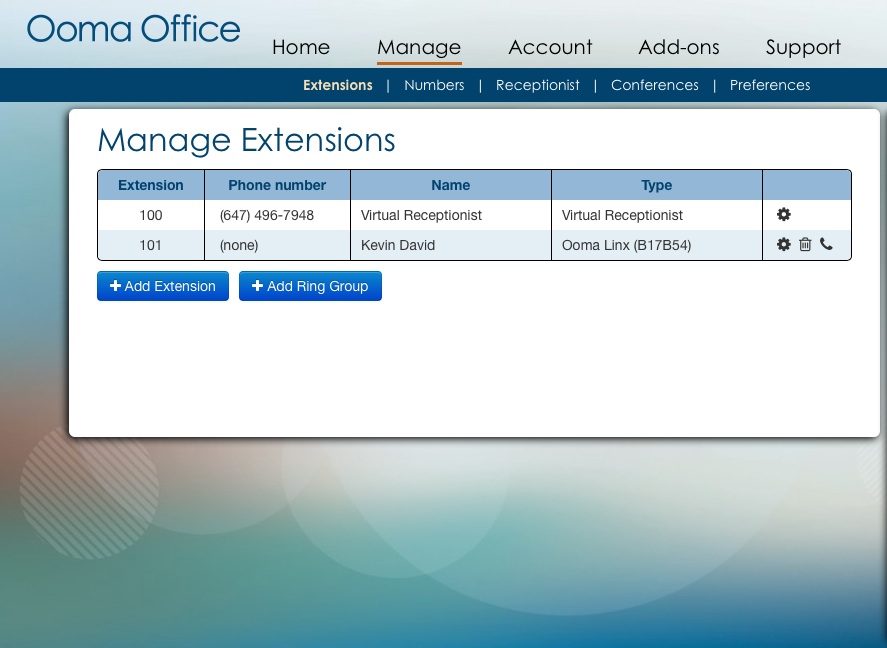
This is the Ooma Office Manager where I can change the greetings, assign extensions (each with voice mail that can be set up forward voice mails to your e-mail which is a very nice touch), or set up calling groups among other things. Using this web based portal which is accessible at http://office.ooma.com anywhere that you have Internet access, I was able to make extension 101 (all the extensions are three digit ones by the way) the Ooma Linx instead of the base station. One thing to note, that change wasn’t instant. It took about 10 minutes before I could make calls using that extension. I’m guessing that there has to be some communication between Ooma and the base station to make this change happen. That’s not the biggest deal in the world, but you should keep that in mind. I should also note that you can set up virtual extensions for remote workers and even have a virtual fax. The system expands to 5 phone extensions and 15 virtual extensions in total.
Since I was in Ooma Office Manager anyway, I took the opportunity to set up a virtual receptionist and a call routing tree to allow people to “press 1 for sales, press 2 for service” as well as set up hours of operation as well as holiday schedules. The process is dead easy and you will never have to read the manual to do any of this. Another thing to note, if you don’t have the best voice, you can use text-to-speech and let the system read out whatever greetings you want. While the voice does sound like it is synthesized, I seriously doubt that anyone will have any issue with it. But you are free to record your own voice or upload pre-recorded MP3 or WAV files. Ooma Office has other features that sets it apart from anything else out there. It supports three-way conference calls using numeric PINs for security, placing calls on hold, music on hold, and call waiting. Not only that, you can track your usage as well. All of this is professional grade and very impressive.
So let’s look at the big there items. Call quality, cost, and support. Let’s start with call quality. My wife made a call to a friend in Maryland and spoke for an hour. She considered it to be the best VoIP solution that she has ever used from a call quality perspective. That includes anything that she’s tested for me as well as the Avaya VoIP based system that she uses at her workplace. That’s high praise since Avaya makes phone systems costing thousands of dollars. Now how about cost? Ooma Office retails for $249.99 in Canada and comes with the base station and two Linx wireless phone jacks. Additional Linx wireless phone jacks are $50 each. Unlimited calling in Canada and the U.S. is only $9.99 per month per user and $9.99 per phone number. The difference between per user and phone number is important. If you have a phone number with one extension, you will pay $19.98 per month. If you have a three person business, each with their own extension, with one phone number and a fax line, it comes in at under $50 per month. That’s affordable for any small business. International calls are billed against a prepaid account (prepayments are made in increments of $25). Tech support is available by phone 24/7. That’s important because if you need help, the best help comes from a live person that’s available when you need them.
Downsides? There are three:
- First, since Ooma Office relies on your Internet connection, it means that if that goes down then so does your phone. Having said that, any VoIP product is at the mercy of your Internet connection. So this isn’t an issue that is unique to Ooma Office.
- The second thing is that a power outage will leave you without phone service. I point that out because a traditional landline will work in a power outage, and some office phone systems will work for a time in the event of a power outage if they have battery backup. Again, any VoIP product would be in the same situation. So again this isn’t an issue that is unique to Ooma Office.
- The last thing that I’ll point out is that I was able to leave the Ooma Office Manager open in my browser for hours. For security reasons, it should time out after 10 or 15 minutes and force you to log in again. That way it keeps some evil doer from messing up your phone system. Ooma might want to do something about that.
Ooma Office is aimed at businesses with 10 or less employees. If that’s you, then you need to seriously consider Ooma Office for your telco needs. It will make you seem very professional and you’ll save some cash on your phone bills without sacrificing call quality. Plus it’s easy to set up and easy to manage. As I said earlier in this review, Ooma has a winner here with Ooma Office. If you’re okay with the limitations with VoIP based phone systems, this is the best business class VoIP system out there. Period.
Leave a Reply