A new iPhone 5 case, but not just any old one, its a camera one, its costs £199.99 and is really quite unique. The Orbit by iZZi is an iPhone case with many added camera benefits. It has not 1 lens but 3! Each one gives you the chance to capture a variety of images and these lenses can be switched round on the back of the case in a turn stile type action. Ok so why 3 lenses? Well the first lens is called a fish eye lens, this means it will give a bubble like look to your images. The second lens is wide angle meaning you can fit more into the picture, 35% more to be precise. Finally the third lens is a telephoto lens which doubles the distance you can see in your images while still keeping the high image quality the iPhone 5 has to offer. It’s available on a pre-order basis from Lovecases.co.uk
Archive for the Products Category
Spotted: iZZi Orbit Camera Case for iPhone 5
Posted in Products with tags iPhone 5, iZZi on April 11, 2013 by itnerdThe Value Of Women In Startups
Posted in Products with tags Startups, Women on March 22, 2013 by itnerd
Review: BlackBerry Z10 – Part 3
Posted in Products with tags BlackBerry on March 20, 2013 by itnerdSo, it’s the end of this review and I have a few loose ends to tie up:
- When it comes to using this smartphone as a phone, the quality of the audio is quite good at both ends of the conversation. One thing I will note is that unlike a lot of smartphones it doesn’t matter where the speaker is placed on your ear. You get clear audio.
- Battery life is not a strong point of this smartphone. I used it as my daily phone during this test and after 8 to 10 hours of usage I had 40% to 50% battery power left. While that’s in line with the iPhone 5, some of the Windows 8 Phones that I’ve tested did much better in this regard.
- There’s a decent amount of apps on this smartphone. Besides the Rogers supplied apps and the usual BlackBerry apps, it also comes with Docs To Go, Facebook, Twitter, LinkedIn, Foursquare, YouTube, BlackBerry Connect for Dropbox, Print To Go, and Adobe Reader. That’s a pretty good software lineup.
So, what do I think of this phone? I was prepared to be underwhelmed, but I am impressed for the most part. This is a great smartphone that can complete with anything that Apple, Microsoft, and Google has in their line up. If BlackBerry does fail to make a comeback, it won’t be because of the product. It will because either the Z10 came too late to save the company or the well documented lack of native apps like Instagram and Neflix will be responsible for putting the final nails in the coffin. Still, at least you can get Angry Birds for the Z10.
This should be a no brainer upgrade for any existing BlackBerry user. Although I suspect that the Q10 with a physical keyboard will attract attention from said BlackBerry users… Whenever that model ships. If you’ve got an older Android or iOS phone, you should seriously take a look at the Z10. If you have a current iOS or Android phone, you might be feeling a twinge of jealousy if you see one of these in action. That’s because the Blackberry z10 is a smartphone that once you’ll try it, you’ll consider putting your cash down for one.
Now let us see if BlackBerry can use the Z10 to turn their fortunes around.
Review: BlackBerry Z10 – Part 2
Posted in Products with tags BlackBerry on March 19, 2013 by itnerdThe BlackBerry Z10 has the usual front and rear camera for your video and picture needs. The rear camera is 8MP and you can see the quality of pics that it can take below. First I took an indoor shot at Museum Subway Station in Toronto:

Now, I figured that this wouldn’t be enough, so I travelled to Davisville Station which is also a subway train storage and maintenance facility and took this picture:

What you’re looking it is one of the new “Toronto Rocket” trains that the Toronto Transit Commission is starting to use in the subway system.
Now I took a video from this location as well in 1080P and I was able to upload it straight to YouTube on the spot, more on that after I show you the video. For best results, set it to 1080P and run it in full screen mode:
The video quality is quite good. But back to uploading to YouTube. Unlike the last few Windows 8 Phones that I’ve tested, this phone can upload video in full 1080P resolution to YouTube. The only gripe that I have is that once you start the process, there’s no progress bar or any other visual evidence that the video is uploading. The only clue that the video uploaded at all is a notification in the hub. Blackberry needs to fix that as it’s a bit disconcerting that you don’t know if your video is uploading or not.
Something else to note is that the Z10 comes with editing tools. Crop, enhance and apply artistic filters to any picture you take. It’s not PhotoShop, but it works well. You also get an app called Story Maker which allows you to string photos to make a movie. Another big feature is Time Shift which allows you to take a picture of someone and if you haven’t got the perfect shot, you can use a circular gesture to “go back in time” to get the perfect shot. I’ve tried it and it works quite well. In fact, it works with multiple people in the shot. This is an impressive feature.
I continue to be impressed with this phone which is a good thing. Tomorrow, I’ll wrap things up in part three and give you my verdict on the Z10.
Review: BlackBerry Z10 – Part 1
Posted in Products with tags BlackBerry on March 18, 2013 by itnerdThis is a pivotal week for BlackBerry. Americans will finally get their hands on BlackBerry 10 devices and we’ll finally see if BlackBerry is going to be a player in the smartphone game, or if they are headed for the dustbin. Thus the timing is perfect for Rogers to hand over a BlackBerry Z10 for me to review.
The Z10 is a thin light phone. It is longer than the iPhone 5 by a bit and it is thinner as well. It feels good in your and and fits into any pocket just fine. It feels solidly constructed. Pop the back and you can slip in a MicroSD card to supplement the 16GB of internal storage. The screen is very sweet being 1280 x 768 resolution with 356 ppi and is 4.2″ in size. It’s bright easy to read, though it is a glossy screen which means that glare can sometimes become an issue. It also attracts fingerprints like crazy. In fact, if you don’t keep wiping the fingerprints off the screen, the screen becomes slightly difficult to look at. One of the things that caught my attention was the Micro HDMI port that allows you to hook the Z10 up to your HDTV or projector. I tried it and it works perfectly. With very little effort, I was able put videos onto my HDTV.
Now, on to the big piece of Z10 which is the software. The BlackBerry 10 OS took me 15 minutes to figure out and I was quickly able to start, multitask, and use apps. In fact, once you figure out not to treat the Z10 like an iPhone or like a older BlackBerry, it’s shockingly easy to use. I’ll also note that Playbook users will be right at home as all of the gestures that the Z10 uses will be familiar to them. In either case, I would use the word “intuitive” to describe how easy this phone is to use. Not only that, but everything in the user interface feels and looks fluid and smooth.
Some things jump out at me:
- The Hub is where everything such as Twitter mentions, E-mail, text messages, notifications is located. Other applications such as the pictures application can send e-mail. If you’re looking for a separate e-mail client, you won’t find one and you will not miss it either. Overall, it is handy to have everything in one place and this feature gets a thumbs up from me.
- The Maps application now does turn by turn navigation that includes speech that reads street names. It’s competent at what it does. But it isn’t consistent in terms of reading out directions. I found that in the city, it would read out street names. But on the highway it was hit and miss. That forced me to look at the phone to see what it wanted me to do. That of course defeats the purpose of having navigation software that does turn by turn navigation. Another weak point, if you’re in an area with weak cell service, you’ll see that it is VERY slow to come up with a route. I suspect that this is done somewhere other than the phone. Still, at least they integrated their maps and navigation apps so that you can do it all from one app (rather than having maps and BlackBerry Traffic). That’s an improvement. But Nokia and Google do navigation on smart phones much better. If there is a weakness to this phone, this is it.
- The new BlackBerry World application not only does apps, but it does music, TV shows and movies. The selection of movies and music is pretty good as I was able to pull up almost anything I was looking for. TV shows fall under the your mileage may vary category. Shows like Breaking Bad and Dexter weren’t there, but I found Gossip Girl and Smallville for example.
- The Browser application supports Flash. That means that any web page works on the Z10. Though I will note that Flash laden pages are slow to load for whatever reason.
- It has a voice control application that reminds me of Apple’s Siri. Compared to what was in BlackBerry products before the Z10, this is a quantum leap forward as it allowed me to do anything that I needed to do via voice and the recognition quality is pretty good.
Another thing that got my attention is how fast this phone is on LTE. Downstream speeds were 44 Mbps with upstream speeds being 14 Mbps according to Speedtest.net. For those of you keeping score at home, that is almost twice as fast as my wife’s iPhone 5. Impressive.
So far, this phone is impressing me. Tune in tomorrow to see what the camera is like and to see if I am still impressed.
Review: Nokia Lumia 620 Windows 8 Phone – Part 3
Posted in Products with tags Nokia, Telus on March 13, 2013 by itnerdI’ve come to the end of this review and I have a couple more things to cover. First let me talk about the Telus network which up until this review, I’ve never used. I had no signal coverage issues, no dropped calls, no problems at all anywhere in the Greater Toronto Area. It was invisible and that was a good thing as you shouldn’t notice your network as it should just do what it meant to do: Deliver calls and e-mail to and from your smartphone. Another thing I should mention is that Telus offered me a session at the Telus Learning Centre to get used to the phone. I didn’t need it, but for a lot of people they never fully leverage what their phone can do. The Telus Learning solves that problem by allowing you to book a 45 minute session with someone who knows your phone so your investment is fully leveraged. Plus one for Telus.
Now, how about the sound quality when using it as a phone? Well, should you want to actually want to use it a phone you won’t be disappointed. The call quality was great. Callers could hear me and I could hear them just fine. Again. it’s doing what it should.
Loose ends? Here’s a few:
- One thing that I really liked about Drive + Beta is that on the highway it names not only the highway, but it reads the sign on the highway that you are approaching. That’s a great feature because if you’re in an unfamiliar place, it makes life easier.
- The battery life is good. In the few days that I had the Lumia 620, I only had to recharge it once and that was out of paranoia.
- The screen attracts fingerprints and smudges. It’s not the only phone that I can make that comment about. But this phone seems to be more prone to that.
- Angry Birds was very good on this phone.
So, what’s my final verdict? Much like the Nokia Lumia 920, I found this smartphone to be feature complete and well executed in terms of function and form. It also has great fit and finish. This is another great phone from Nokia and one advantage that this phone has that will drive people to their local Telus dealer is the fact that this phone is a great size which fits easily in your hand and in your pocket. Plus the price is right: It’s $250 or you can get it for $0 on a two year plan.
If you’re looking for a nice sized smartphone with a good feature set, check out the Lumia 620. You won’t be disappointed.
Review: Nokia Lumia 620 Windows 8 Phone – Part 2
Posted in Products with tags Nokia, Telus on March 12, 2013 by itnerdIn part 2 of this review, I’ll cover the cameras in the Nokia Lumia 620. It has the usual two cameras. One forward facing and one at the rear. The rear one is a 5MP auto focus camera with LED flash that also does 720p HD video capture. Those numbers may seem disappointing to those who are used to 8MP cameras that do 1080P video, but you’ll see that it really doesn’t really make that much of a difference.
So let me cover the still photos first, here’s a couple of shots taken at Toronto’s Pacific Mall which is the largest Asian indoor mall in North America with over 500 stores (click on the pictures to see them in full size):

To show how well the camera handles colour, here’s a short outside a Japanese restaurant that is newly opened:

Even though the camera is ONLY 5MP, it does a great job of taking pictures.
As for the video, I could not get my video to upload in 720P. But you can see the image quality and hear the sound quality:
Again, it works quite well. I cannot complain here, other than the fact that I couldn’t display this in full resolution.
One thing that would really push this phone up the food chain is the ability to upload videos directly to YouTube. Now that’s something that I’ve complained about with every Windows 8 Phone that I’ve reviewed so this is not a shortcoming of this particular phone. Either Microsoft or the phone manufacturer in question needs to address this shortcoming as there are many users who won’t tolerate not being able to upload their videos of themselves doing stuff from the TV show Jackass that they want to share with friends and family to YouTube from their phone.
The final part of this review will wrap up a few things including talking about the Telus network.
Review: Nokia Lumia 620 Windows 8 Phone – Part 1
Posted in Products with tags Nokia on March 11, 2013 by itnerdMy latest review is the Nokia Lumia 620 Windows 8 smartphone courtesy of Telus who is the first carrier in North America to have this phone. The first thing that gets my attention is the feel of the phone. The phone feels nice in your hand and it is a good size and weight. Compared to my wife’s iPhone 5, it’s a tiny bit thinner, and a tiny bit shorter. It will fit into your coat or pants pocket easily. It also feels solidly constructed. You can pop off the the back and pop in a 64GB MicroSD card which will supplement the 8GB of internal memory. You can also replace the battery.
The phone is a HSPA phone that will go as fast as 21 Mbps. I couldn’t test that using Speedtest.net , but doesn’t feel slow. Pages using Internet Explorer rendered reasonably quickly. You also get 802.11 B/G/N WiFi to make sure that you don’t burn through too much cellular data. In terms of processing power, you’ve got a dual core 1Ghz Snapdragon processor running the show. There’s a 3.8” WVGA ClearBlack LCD (480 x 800) screen. It’s bright, clear and vibrant. Photos look nice on this screen. I found it to be good, but the iPhone 5 has a sharper screen. The one thing that I will point out is that the screen is glossy and while bright light such as the sun won’t wash out the screen, it could use an anti-glare coating to make it absolutely perfect. The quality of the sound is pretty good as the phone has an equalizer and Dolby based boosting, but only if you use a headset.
As for the built in apps, there are a number that come with the Lumia 620. Some of the ones that stand out are:
- Nokia Drive + Beta: This is a navigation app that offers voice based turn by turn navigation that speaks the names of the streets. The maps are resident on the phone and you can have as few or as many maps as you want on the phone. That means you won’t burn through cellular data constantly downloading maps in real time like you would with Apple Maps or Google Maps. Speaking of maps, there’s a separate maps application called Nokia Maps that also leverages these maps.
- Nokia Transit: This app helps you to navigate using public transit. It fetches public transit schedules to give you an idea of how long your journey will take. It is simple to use and even gets transit schedules to give you a reasonably accurate idea of how long your trip will take.
- Nokia City Lens: This is an augmented-reality app. Hold up the phone in landscape mode to see nearby businesses, landmarks, and happenings. I’m not sure how accurate this info is as it highlighted stores and restaurants that don’t exist anymore. Nor did it show some stores that I was standing right in front of. But I’m sure it can prove useful.
If all of this sounds familiar, it should. These are the same apps that came with the Nokia Lumia 920 that I reviewed a while ago. The difference is that in the case of Nokia Drive + Beta, it works better. That’s the beauty of being a beta product. You get constant improvements.
Also of note, it comes with the usual Windows 8 Phone apps such as Office, OneNote, Internet Explorer and Outlook. Also, if you’re an Angry Birds fan, there’s an app that allows you to easily buy the Angry Birds games and gives you access to all sorts of items related to the game. You can also set up your LinkedIn, FaceBook, and Twitter accounts on the phone and use an app called People so that you can keep tabs on your friends. If you prefer to use a separate app for Facebook or Twitter, you’ll have to take a trip to the Windows Marketplace to grab one.
So far, this phone looks like it’s very feature complete. So we’ll move on the camera. That will be in the next part of this review.
In Depth: Sonos PLAYBAR [UPDATED]
Posted in Products with tags Sonos on February 28, 2013 by itnerdI’ve written about the Sonos PLAYBAR previously, and tonight I got a chance to try one out and came away impressed. But first, let me show you the PLAYBAR:

Here’s the PLAYBAR, it weighs under 6 kilograms and has 9 different elements inside it. You can mount it on the ceiling, under your TV or place it in front of your TV. In terms of the latter, it will pass through IR signals so that it doesn’t interfere with the ability of the TV to process remote control signals. I should note that it comes with a remote control that has the ability to learn any other remote control function. That way one remote control can run all your devices.

On the back is a TOSLINK connection along with two Ethernet ports. One in, one out. Nice to have, but the whole point of using a Sonos device is to leverage both 802.11 wireless as well as their proprietary mesh network. A mesh network has devices that has their wireless signals overlap each other so that each device improves the strength of the network. Thus, you can mix the PLAYBAR with Play:3 and Play:5 speakers for example and toss in a SUB to get extra bass and create a surround sound system without any wires.
There’s also one other feature:

Sonos has an app called Control for iOS and Android as well as Mac and PC that allows you to not only control your sound system, but you can stream audio content to the system wirelessly. That could be your MP3s in your collection or it could be streaming services such as Tunein Radio, Pandora or even SirrusXM. The key feature is that these streaming services are completely integrated into the app which means that you do not have to run a separate app to get to your streaming content. Another plus, you can use this app to create zones for your content. You can place Sonos speakers in your living room, den, and bedroom and use the app to play your content in whatever room you want for example.
So, the question you want answered is how good is the PLAYBAR? In a word, impressive. By itself it does excellent stereo separation and even surround sound effects work well. What was more impressive was the fact that anything that was thrown at it was reproduced perfectly. Movie audio, electronic music, vocals, whatever, it all played back perfectly. It was impressive. What was even more impressive was the fact that as additional Sonos hardware was added to the mix, the sound even more mind blowing. I’ll also say this, this was demoed in a room where this system had to contend with a very large room which had to be about 3 to 4 thousand square feet in size and had 15 foot ceilings. The audio quality from the PLAYBAR was stunning in this environment. Thus in a condo, a basement, or someplace else in your home, the PLAYBAR will simply blow you away.
So, what does all this audio goodness go for? The list price is $749 and it’s worth every penny. It will be shipping in early March. If you want a sound bar, do yourself a serious favour and take a look at the Sonos PLAYBAR. It has sound quality that is simply impressive and you’ll want one the second you hear it. I’ve requested one to try in my condo so that I can give you an even more detailed review. Watch for it.
UPDATE: Here’s an oops moment. There were a few things I got wrong. Here’s the corrections straight from Sonos:
The PLAYBAR doesn’t include a separate remote control of its own. The idea is that people have so many remotes already, so the designers didn’t want to clutter things up with another remote. To that end, the PLAYBAR is able to learn most manufacturer or universal IR remotes very easily, letting you adjust the PLAYBAR’s volume with your existing remote. Of course, you can also control the PLAYBAR from anywhere in your home with the free SONOS app on your iPhone/iPad/iPod Touch, Android phone/tablet, Mac or PC, as you saw last night.
Also, the PLAYBAR can’t use PLAY:5s for 5.1 surround sound. The PLAYBAR, PLAY:3 and SUB have two wireless radios: a 2.4Ghz radio, designed to keep your SONOS players connected to each other over the SonosNet mesh network, and a 5Ghz radio that enables the lightning-fast communication between PLAYBAR, SUB and the PLAY:3s that is required for the surround sound experience. The PLAY:5 doesn’t have a 5Ghz radio, so it won’t work as part of the 5.1 setup. You can definitely stream sound from your PLAYBAR to a PLAY:5 or other SONOS unit elsewhere in your home, it just won’t be specifically a rear surround channel. With two tweeters, two mid-range drivers and a subwoofer apiece, PLAY:5s would be completely overkill as rear surround speakers anyway, really!
Thanks for helping me get this right!
In Depth: Chrysler Uconnect 8.4
Posted in Products with tags Chrysler on February 19, 2013 by itnerdI recently had the opportunity to drive the 2013 Dodge Dart Limited and one of the thing that really impressed me was the Chrysler Uconnect system that was in the car. In fact, during part 5 of the review, I had this to say:
I’m going to stick my neck out a bit and make a very bold statement. It’s the best and easiest system of this type that I have used. Period.
Now that’s is a bit of a bold statement, but it is true based on the fact that I’ve tried other systems and found this to be quick to learn and easy to use. I’d like to go into why that is.
Chrysler has spent a lot of time making sure every aspect of the system, which is fronted by a massive 8.4 inch touchscreen, is easy to use. They have a Human Machine Interface group that does nothing but look at how users interact with UConnect and what they want from the system. That led to creating a simple to use interface for users to interact with. Here’s an example.

Take the phone interface for example. You have clear controls for redialing and ending calls for example. Plus other functions are clear and easy to understand. Also, what is actually usable has brighter words than what is not. That way you don’t waste a button press to find out that you can’t use that function. Let me give you another example:
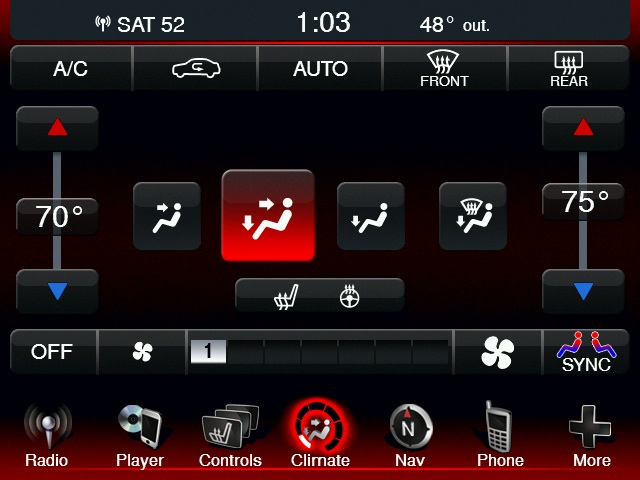
The climate controls are also clear and easy to use. One thing to note are the sliders for the temperature controls. The key thing is that they are sliders. In other words, you can slide your finger up and down and set the temperature that you want. Again, the rest of the controls are easy to use and are very logical. Finally, let me show you this screen:
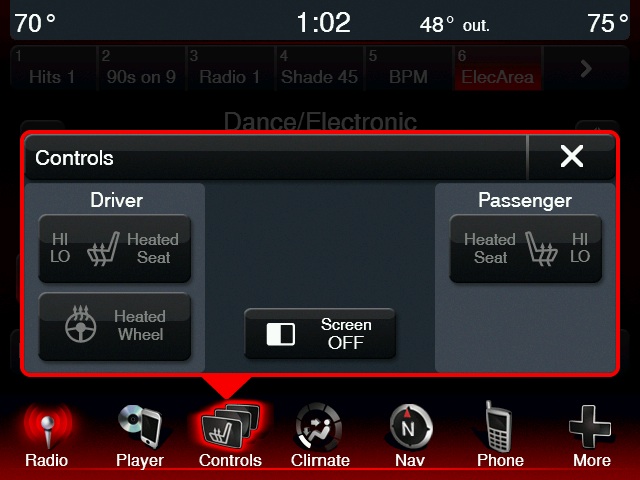
I’m going to bring your attention to the bottom row of icons. These icons are always on the screen regardless of what you might be doing. That way you can quickly switch from the radio for example to the phone and back again. That makes the system very easy to use without having to open the manual.
Now the next thing that sets this system apart from others is the fact that the navigation system is supplied by Garmin. That’s a great move because most of these systems use navigation systems that are either made in house or created by a company who’s strength isn’t navigation. That means that users of these systems don’t get the best user experience. By using Garmin, Chrysler gets a proven navigation system that people are already familiar due to the fact that many people have used stand alone Garmin systems in the past. There’s no doubt that this is the reason why Chrysler has had one of the best embedded navigation systems according to JD Power.
Next, is how UConnect interacts with smartphones. These systems need a lot of work to make sure they interact with smartphones perfectly. Thus Chrysler puts a lot of work into making sure that as many phones as possible are tested. For example, phone users can also go to uconnectphone.com and by clicking a few things, users can find out how their smartphone will work with UConnect. To come up with this takes a lot of time and effort and Chrysler needs to be applauded for that.
Finally, the system is completely upgradable. Additional functions can be added through software updates. So if there’s a demand for Slacker for example, you can expect it to show up in UConnect. Plus the usual bug fixes can easily be rolled out. All users have to do is go to driveuconnect.com and choose the vehicle that they have. A few clicks and your VIN (vehicle identification number) will get you the latest updates that are available. No need for Chrysler to wait for you to send you the update. Updating your system is also easy. Simply download an .EXE file if you’re a Windows user or a .DMG file if you’re a Mac user. Open the respective file and copy the file that is packed inside that file and copy it to a USB stick that you supply. Then plug it into the USB port of your Chrysler product and turn on your car. It will take about 15 minutes or less to update. Easy and painless. This won’t be a hard thing to do for the tech savvy. So if you don’t consider that to be you, your local dealer can do this for you. But from what I can see, you’ll be fine to do this by yourself.
UConnect is a cutting edge system that has a lot going for it as you can see from my in depth look at the system. I truly believe that this system will drive sales to Chrysler vehicles if potential customers get a chance to try this system as it’s very easy to use and it’s very feature rich. Chrysler deserves a lot of credit for putting this system in their vehicles and I look forward to seeing it in more and more Chrysler vehicles as time goes by.