Archive for Belkin

Belkin Announces Premium Metallic Lightning Cables

Posted in Commentary with tags on June 10, 2014 by itnerd

Frequent readers of my blog will know of my trouble with Apple Lightning cables. Belkin may have just come to my rescue with the announcement of their Premium Metallic Lightning Cables. Braided with metallic threads, this new threaded design makes the cable more flexible and longer lasting, and adds a more sophisticated look and feel. That alone got my attention, but there’s more. As you would expect from Belkin, these cables are MFi-certified for safety and plug directly into any USB 2.0 port to charge and sync quickly. Available in 4-foot or 6-inch lengths and designed for use with a laptop, car or wall charger, the premium metallic cables are the perfect charging accessory for home, work or on the road.

dn

The gold, silver and  grey Lightning to USB cables are available now at Belkin.com and are planned for availability in Apple stores in late June at MSRP $24.99 to $29.99. I’ve reached out to Belkin to get my hands on one of these cables. Expect a review to be posted when I do.

Review: Belkin FastFit Keyboard Case For iPad Mini

Posted in Products with tags on May 14, 2014 by itnerd

I have to admit, when I received the Belkin FastFit Keyboard Case For iPad Mini, I was impressed from the moment I unpacked it. It felt like a quality product. The back cover is made of aluminum that matches the iPad mini’s silver back. The hinge is a single piece of aluminum The top case is finished in a black matte. Inside, the black, slightly textured chiclet keys sit in an almost edge-to-edge layout. So right off the top, you should be impressed with what you have in your hands. It’s thin so it doesn’t take up any more space than required and a built-in stand accommodates the iPad mini in both portrait and landscape mode. It’s solid so that it will protect your iPad Mini from bumps when it’s in your bag. Though I will note that it does not protect the edges of the iPad Mini.

So, the next question is how does it work? It uses Bluetooth to pair to your iPad Mini and the process of pairing is dead easy. As for typing, given the size has to match the iPad Mini, you give up some space which might affect touch typists or those with big hands in terms of the occasional mistyped word. The reason is that it’s not a full sized keyboard. However, I adapted to it the more I used it and I got reasonably good at typing on this keyboard. The keys feel close to what you would find on a MacBook so that helps with adapting to it. One thing that I did like were the function-specific keys for copying and pasting text, moderating volume, using Siri and controlling music. Belkin says that the battery should last up to three months. I only used it for a few days so I can’t tell you if that’s true or not. But it never warned me about the battery being low (the light on the side of the keyboard will flash amber when that’s the case) the entire time I used it. So I have no reason to doubt them. It charges via a micro USB cable (which is included by the way).

My verdict? I’d recommend the Belkin FastFit Keyboard Case For iPad Mini for someone who needs a keyboard for their iPad Mini. It is on the small side, but once you adapt to it I think you’ll find it to be very useful. It’s $79.99 at Belkin.com and at your local retailer.
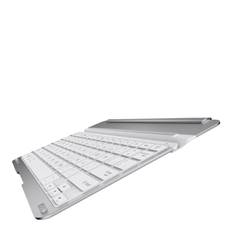
Belking QODE Thin Type Keyboard For iPad Air Announced

Posted in Commentary with tags on May 8, 2014 by itnerd

Belkin announced the availability of the QODE Thin Type for iPad Air today. It is one of the thinnest keyboards on the market and the newest addition to the award-winning line of QODE tablet keyboards. Ultra-thin and lightweight, the QODE Thin Type offers unsurpassed portability for productivity on the go.

image003

At less than 4mm thick, the Thin Type is built with a solid, unibody construction that is lighter in weight than the iPad Air itself. Fast and easy to attach with secure-hold magnets, the QODE Thin Type is the perfect portable keyboard companion to toss into bags, backpacks and briefcases. The QODE Thin Type features Belkin’s exclusive TruType technology for a comfortable, natural typing experience similar to that of a full-sized laptop. With well-spaced, responsive keys, typing on the Thin Type is faster and more accurate than typing on the tablet’s touchscreen alone. Thin Type offers up to 79 hours of active battery life and pairs seamlessly with a one-touch Bluetooth key.

QODE Thin Type for iPad Air is available now at Belkin.com and select retailers worldwide.

WeMo App Updated With New Functionality

Posted in Commentary with tags on April 18, 2014 by itnerd

If you have Belkin’s WeMo home automation gear, you should check the Apple App Store or Google Play for an update. The new WeMo app introduces new features including:

  • The away mode, or simulated occupancy, setting allows users to schedule lights to turn on and off at random intervals, making it appear that someone is home even when the house is vacant. Away mode is a useful security tool and provides greater peace of mind when traveling.
  • There is now a sunrise/sunset offset so users can program lights to turn on or off at a preselected interval before the scheduled sunset/sunrise time for their particular zip code. This is extremely useful in circumstances where the house gets dark before the sun sets in the evening.
  • The programmable backlight dimmer allows users to dim the backlight that illuminates on the WeMo Light Switch wall plate when the switch is turned off.
  • The WeMo App now features a new benefit exclusively for users of IFTTT, a customizable long press option. The long press lets WeMo users program an additional setting for a press longer than two seconds on the physical light switch button. This feature is programmed through the IFTTT WeMo Light Switch channel and allows users to create recipes that can interact with other IFTTT channels. For example, program the long press to automatically send a text to your phone when deployed or have the long press control lamps plugged in to WeMo Switches in other parts of the house at the same time.

The updated app is available now for iOS and Android. Check it out.

Review: Belkin NETCAM HD

Posted in Products with tags on March 4, 2014 by itnerd

As long time readers of this blog will know, I was robbed a few years back. But I had a camera that sent me e-mail alerts when it happened. Thus I was able to call the cops. Though they didn’t get there in time to catch the criminals, the camera gave them something to work with in terms of the images of the scumbags who broke in.

Since then I’ve always been on the look out for a new Internet accessible camera that is easy to set up and use. Previously, I’ve had to go through a fair amount of work to set up a camera, and the ones that I’ve used have worked but they were far from user friendly. Not to mention the fact that I have had to get a static IP address and open port 80 on my router to make the camera accessible to me remotely. If you’re an IT Nerd like me, that may not be a big deal. But the average consumer isn’t going to do that.

Enter the Belkin NETCAM HD.

This camera is easy to set up as long as you have a smart phone and it is easy to use. Let’s start with the setup:

  1. Plug in the NETCAM HD and flip the switch at the back of the camera to the setup position.
  2. Download and install the NETCAM app for iOS or Android onto your smartphone or tablet.
  3. Go into the WiFi settings on your smartphone or tablet and choose the NETCAM network. Then start the NETCAM app and follow the instructions including creating a unique username and password for reasons that I will explain in a bit.
  4. When prompted, pick the WiFi network that you want to use and enter the password associated with it along with an e-mail address.
  5. Wait as it does its magic.
  6. Flip the switch at the back of the camera to camera mode when you’re told to.
  7. Done. Declare victory and have a beer.

At this point you have a camera that you can access inside and outside your home either on your smartphone or via either the app on your phone or tablet or via the NETCAM web page.  Either way, you can use the app or the webpage to view or control multiple NETCAM devices. You don’t have to configure a thing on your router to make this camera accessible from outside your home. The only thing I note is that you may have to try to connect to it a couple of times before you see a picture. Not the biggest deal in the world, but something you should be aware of. In any case, this means that your home network is more secure because you don’t have to open ports to make the camera accessible from outside your network, and a non-technical user can make this work. Another thing to note, the smartphone app as well as the webpage which is a Belkin webpage are secured by the password and username that you entered earlier.

The NETCAM HD does 720P video and my tests indicate it was generally sharp. I say generally because the video quality that you see is adaptive depending on your bandwidth. So you will get better quality if you have a good connection to the Internet and to your phone or tablet. You can alter the settings to set it to the quality levels that you want, but I would not bother. It works best when it’s set to automatic. Another item to mention is that the video is jerky unless you have a lot of upstream bandwidth available to the camera. Unless you need absolutely perfect video, this may not be a factor. The other thing to note is that it has e-mail alerts if it detects motion. Unlike other cameras where you have to define areas where the camera needs to look for motion, the NETCAM HD will simply look for motion in the entire field of vision. The net result is that enabling this feature is as simple as flipping the feature to on using the NETCAM app. Any notifications in terms of motion are sent to e-mail address that you entered during the set up process. But it can be changed later, but only from the NETCAM webpage. The pictures that were e-mailed were very sharp and clear. Though I will note that it takes roughly five minutes from the time that motion is detected to the time you get the e-mail. I’m guessing that it has to do with the fact that the camera has to talk to the Belkin server and the server then has to take a couple of images from the camera and package them up into an e-mail to send to you. The NETCAM HD has night vision capabilities via a ring of IR lights that are around the lens. While the effectiveness of IR is going to vary from room to room, I found it to be very effective in my condo. I should also note that the night vision is set to be automatically turned on and off depending on the light levels. Finally, the camera has built in two way audio. I could use the NETCAM app to turn on the microphone and listen into what is going on at home. I could also turn on the speaker and via my iPhone 5 I could talk via the camera. That might be handy to scare away an intruder or talk to your spouse.

In terms of mounting the camera, it comes with all the hardware you need so that you can put it on the roof, or anywhere else you want to put it.

Downsides? If I really wanted to nitpick things, I would point out that the camera is driven by Belkin’s cloud service. That leaves you completely dependant on another party to use the camera. Now that’s not a bad thing as it gives you options to store clips on their cloud service if you pay to use it. Plus you can get push notifications to your phone as well. Not to mention the fact that this cloud service helps to make the NETCAM HD easier to use. However, some might argue there might be privacy issues (though there’s a clear privacy policy) and there’s always the risk that the cloud service might go down. Another thing to nitpick is the fact that you can see the camera in the Belkin WeMo app and if you click it, it will start the NETCAM app. However if you do that, it will require you to enter your username and password into the NETCAM app even if you have the app set to login automatically. If you simply go to the NETCAM app, it lets you log in automatically. Weird. Finally, it seems that there is no way to set up this camera from scratch using a computer. So if you don’t have a smartphone or tablet, you are out of luck.

My bottom line? If you want an easy to set up camera for security purposes or just to keep an eye on your cat or dog, you need to look at the Belkin NETCAM HD. It is extremely easy to set up and use and the video quality in both normal and night usage is great. Check it out at your local Belkin retailer or Belkin.com.

Belkin Announces Cases, Armbands and Charger For The Samsung Galaxy S5

Posted in Commentary with tags on February 26, 2014 by itnerd

Accessories maker Belkin has unveiled a line of accessories designed for the new Samsung Galaxy S5 that was announced this week. Belkin’s new accessory collection includes stylish folios, everyday protection cases, athletic armbands and charging solutions for at home and on the go and they are designed to complement the new features of the Samsung Galaxy S5.

Here’s what Belkin has on offer:

2-in-1 Wallet Folio Case for Samsung Galaxy S5 (F8M924) – $39.99

  • Three-way versatility: protection, storage and viewing
  • Removable Xpose™ frame slides up for instant photos or as a separate protective case
  • Three inner card slots
  • Additional vertical storage pocket
  • Stand function for viewing videos and photos
  • Tab closure with magnetic snap
  • Available in four colours: Black/Gravel, Azalea/Fiesta, Ink/Lavender and Lagoon/Ink 

Classic Folio (F8M921) and Stripe Folio (F8M923) for Samsung Galaxy S5 – $29.99

  • Cover converts into a stand for easy hands-free viewing
  • Hard-shell frame with microfiber-lined outer cover for full-coverage scratch protection
  • One inner card slot
  • Tab closure with magnetic strap
  • Slim, form-fitting design
  • Classic Folio comes in five vibrant jewel-toned colors: Blacktop, Mask, Azalea, Lagoon and Orchid
  • Stripe Folio comes in five colours with a bold, contrasting stripe: Blacktop/Charcoal, Azalea/Red Violet, Mask/Lacquered, Lagoon/Peacock Green and Fiesta/Fuchsia

Air Protect™ Grip Extreme Case for Samsung Galaxy S5 (F8M911) – $34.99

  • Dual-layer protection with glass-fiber fortified inner ShocWave™ skeleton and flexible, shock-absorbent outer shell
  • Reinforced edge protects against drops
  • Soft-touch outer shell wraps around edges for enhanced scratch protection
  • Slim, form-fitting design for bulk-free damage defense
  • Available in five colours: Slate, Paparazzi Pink/Citrus, Pale Blue/Lavender, Topaz/Limelight and Lavender/Topaz

Air Protect™ Grip Max Case for Samsung Galaxy S5 (F8M912) – $34.99

  • Reinforced corners protect against drops
  • Dual-layer protection with rigid inner frame and flexible outer shell
  • Flared design keeps phone raised off surfaces to prevent scratches
  • Slim, form-fitting design for bulk-free damage defense
  • Available in five colours: Blacktop/Slate, Gravel/Topaz, Fuchsia/Mint, Lacquer/Hazard and  Topaz/Limelight

Air Protect™ Grip Bumper Case for Samsung Galaxy S5 (F8M913) –$29.99

  • Reinforced corners protect against drops
  • Dual-layer protection with rigid inner frame and flexible outer shell
  • Slim, form-fitting design for bulk-free damage defense
  • Soft-touch outer shell wraps around edges for enhanced scratch protection
  • Available in seven colours: Blacktop/Slate, Gravel/Topaz, Fuchsia/Mint, Lacquer/Hazard, Topaz/Limelight, Red Violet/Lagoon and Mask/Civic Blue

Air Protect™ Grip Vue Case for Samsung Galaxy S5 (F8M915) – $29.99

  • Dual-layer protection with rigid inner frame and transparent, shock-absorbent outer shell
  • Wraparound edges for enhanced scratch protection
  • Slim, form-fitting design for bulk-free damage defense
  • Available in three colour combinations: Stone, Lavender/Fuchsia, and Lagoon/Topaz

Air Protect™ Grip Candy SE Case for Samsung Galaxy S5 (F8M910) – $29.99

  • Textured edges for added grip
  • Flexible, shock-absorbent, soft-touch shell that wraps around edges for enhanced scratch protection
  • Slim, form-fitting design for bulk-free damage defense
  • Available in five colours: Gravel/Stone, Lacquer/Stone, Topaz/Gravel, Fuchsia/Orchid and Purple/Jade

Air Protect™ Grip Candy Case for Samsung Galaxy S5 (F8M909) – $24.99

  • Flexible, shock-absorbent, soft-touch shell that wraps around edges for enhanced scratch protection
  • Slim, form-fitting design for bulk-free damage defense
  • Available in seven colours: Clear/Gravel, Pale Blue/Blacktop, Orange/Gravel, Civic Blue/Mix It Blue, Orchid/Bubblegum, Fuchsia/Topaz and Topaz/Azalea

Slim-Fit Armband for Samsung Galaxy S5 (F8M919) – $29.99

  • Lightweight, breathable, hand-washable neoprene material
  • Slimmer, adjustable strap with integrated cord storage
  • Comfortable, easy-to-adjust loop design
  • Clear screen protection
  • Available in Blacktop and Fuchsia

Sport-Fit Plus Armband for Samsung Galaxy S5 (F8M702) – $29.99

  • Lightweight, breathable, hand-washable neoprene material
  • Pouch for key or cash
  • Adjustable strap
  • Clear screen protection
  • Available in Blacktop

Sport-Fit Armband for Samsung Galaxy S5 (F8M918) – $24.99

  • Lightweight, breathable, hand-washable neoprene material
  • Adjustable strap
  • Clear screen protection
  • Available in Blacktop

Belkin’s folios, cases, armbands and charging solutions for the Samsung Galaxy S5 are planned to be available starting in late March at belkin.com and select retailers across Canada.


Review: Belkin Miracast Video Adapter

Posted in Products with tags on February 13, 2014 by itnerd

Something that was quietly launched recently was the Belkin Miracast Video Adapter. It’s purpose is to allow you to mirror the display on your Android smartphone to your HDTV over the air. That way you can play your favourite game or surf the net on a much bigger screen. The question is, how well does it work?

The first thing is that you need to have an Android phone that works with it. If you have a phone running Android 4.2 or higher, you’re in business. I didn’t have a test phone handy with Android 4.2 so I had to borrow one for this test. If you’re unsure about whether your phone will work or not, here’s a list of what Belkin has tested. Assuming you have a phone that works, here’s what you need to do next:

  1. Plug the Miracast into your HDTV’s HDMI port. You may need the included HDMI extension cable to plug it in.
  2. Plug the included USB cable into the Miracast and an available USB port on your HDTV.
  3. Using your remote control, set your TV to the HDMI port that you plugged the Miracast into. If you see some instructions on your screen, you’re doing fine so far.
  4. Grab your Android phone and follow the on screen instructions to connect the smartphone to the Miracast. What you have to do varies from device to device. But it’s not more than three or four steps to connect your phone to the Miracast.
  5. Done!

Once you’re set up, anything on the screen of your phone will be mirrored exactly in 1080p resolution on your TV. Any sound that would normally come from your device will also be piped through the TV speakers. The mirroring (or “Casting” if you’re on a Nexus device) goes until you tell it to stop. The picture looked good. It’s likely best suited to watching YouTube videos in HQ. Games and apps looked decent. But some elements did suffer from being blown up in size to fit a HDTV. None of it is objectionable. The only real objection is that there is some lag between the phone screen and the TV. So if you’re playing a first person shooter, you’ll be forced to look at the phone’s screen to play.

So, what can you expect to pay for the Belkin Miracast? It retails for $80 MSRP. If you have a supported phone and you’d be using it for something other than hard core gaming such as displaying presentations or watching videos, the Belkin Miracast is worth a look to take what’s on your phone and display it on your TV.

Belkin Named One Of Fast Company’s Most Innovative Companies In The Internet Of Things

Posted in Commentary with tags on February 11, 2014 by itnerd

Belkin picked up a very interesting award yesterday. Fast Company today named Belkin to its 2014 list of the Top 10 Most Innovative Companies in the Internet of Things. The list is published as part of the magazine’s annual Most Innovative Companies issue, which celebrates companies that exemplify the best in business from across the economy and around the world.

Why Belkin made the list is easy to see. They have home automation and home networking products in the form of the WeMo and Linksys brands, which are well established. Another area of on-going innovation is the work Belkin is doing with water and power energy use through the Belkin Echo Power and Echo Water solutions.  These solutions are analyzing energy and water usage to help homeowners and building managers understand waste and part replacements and even sense security issues. Commercial pilots are beginning next month and the plan is to have availability later this year.

The Most Innovative Companies issue (March 2014) is Fast Company’s most significant, high-profile editorial effort of the year and hits newsstands beginning February 17. It also is available online at www.fastcompany.com/MIC as well as in app form via iTunes.


Review: WeMo Home Automation Family

Posted in Products with tags on February 7, 2014 by itnerd

I got some interesting equipment from Belkin’s WeMo home automation family recently. The whole point of WeMo is to utilize your Wi-Fi network and smartphone to control your home electronics anywhere. The key advantage over similar systems is to do this with a setup process that is so easy that you don’t need an IT Nerd to do it. Here’s what I got from Belkin:

  • WeMo Light Switch: The WeMo Light Switch allows you to turn lights on and off from anywhere. It’s intended for light fixtures like your dining room chandelier for example. Unlike most of the items that I will talk about, you need to do some electrical wiring which means that you may need to employ the services of a licensed electrician if you don’t feel confident about doing it yourself (which isn’t all that hard from personal experience replacing light switches). MSRP: $50
  • WeMo Switch: This is one of a number of WeMo products that is aimed at devices that you plug into an AC outlet. Simply plug the switch into an outlet in your home, and plug any device into the switch. Done. MSRP: $60
  • WeMo Insight Switch: The next step up above the WeMo Switch is the Insight Switch. It can monitor your electronics and will send information about the device’s energy usage directly to your smartphone or tablet. That way you can see what that device is costing you. It is perfect for A/C units, TVs, washers, dryers, fans, lights and more. MSRP: $60
  • WeMo Switch+Motion: If you need more than the ability to turn your devices on and off from your phone, then this is for you. It is capable of turning devices of your choice on or off as soon as movement is detected using a motion sensor. MSRP: $80

I was able to test the last three items. Setting this stuff up was incredibly easy, which is fortunate as there are little in the way of instructions inside the box. Here’s all I did:

  1. Plug in WeMo device.
  2. Download and install the WeMo app for iOS onto my iPhone 5. Don’t worry Android users, there’s a version for you too.
  3. Go into the WiFi settings on my iPhone and choose the WeMo network
  4. When prompted, pick the WiFi network that I want to use and enter the password associated with it.
  5. Enable remote access. I should note that I did not have to change a thing on my router to enable remote access.
  6. If it prompts for a firmware update, let it do it while you play Angry Birds (which is what the app suggests that you do).
  7. Done. Declare victory and have a beer.

This was about 10 minutes from start to finish. When I completed the process, I was able to turn the lights that I had plugged into the WeMo Switch anywhere. By anywhere I mean in my condo, or anywhere that I had a data connection. Another thing to note, every other WeMo device I plugged in was easier to set up as it cached some of the info related to my WiFi network. You’ll appreciate that when you’re setting multiple WeMo devices up. One thing I did notice was that the more devices you add, the longer that they take to appear for remote access. Sometimes as long as 10 minutes. But once they have appeared, they seem to remain visible remotely unless you reboot your router.

Now using the app (which is extremely easy to use by the way), you can set WeMo devices to turn themselves on and off by a schedule, say sunrise or sunset, or by motion if the WeMo device supports it. You can also get a notification via e-mail if there’s motion or if certain power thresholds are exceeded. I should also note that two or more people can control WeMo devices as my wife and I were both able to turn devices on and off from our respective iPhones. If you’re really into customizing things, the WeMo devices works with if This, Then That (IFTTT) recipes. How can this help you? IFTTT is a free service that lets you relate functions across different applications and services.  For example, you could create a IFTTT recipe that alerts you by flashing the lights when Twitter is going nuts because Justin Bieber got arrested again or when Mayor of Toronto Rob Ford is in one his famous drunken stupors. Okay. Those are kind of trivial examples. But you can actually do them. I should not that there are all sorts of recipes available online that allows you to do whatever you want if those don’t interest you.

So, what’s the bottom line? The WeMo family of products are an easy way to automate your home. They’re easy to set up and easy to use. If you want to have the ability to turn your lights or other devices on and off from anywhere, or set up a schedule to do it for you, check out the WeMo family of products. Give the a look and I think you’ll like what you’ll see.

Belkin Announces New Products and App Enhancements At CES

Posted in Commentary with tags on January 5, 2014 by itnerd

Belkin and Linksys are first out of the gate with CES starting this week.

Belkin today announced a slate of new WeMo devices including the WeMo LED Lighting Starter Set and WeMo Smart LED Bulbs, the WeMo Maker Kit, and Crock-Pot WeMo Slow Cooker. Also on tap for the WeMo line at CES is a revised Android and iOS app offering improved functionality and enhanced lighting features.

Belkin’s new LED Lighting Starter Set and WeMo Smart LED Bulbs allow you to control, schedule and dim your smart LED bulbs from anywhere. As easy as replacing a standard light bulb, the WeMo Smart LED Bulbs work through the WeMo Link and are controlled via Wi-Fi and the WeMo app. The long-lasting bulbs are 60-watt equivalent with 800 Lumens and 3000 Kelvin for a bright, pleasing warm white light. Fully dimmable, WeMo Smart LED Bulbs can be controlled individually or in groups.  The WeMo LED Starter Set includes two LED Smart Bulbs and a WeMo Link, which can support up to 50 individual Smart bulbs. Individual WeMo Smart LED bulbs also will be sold separately.

WeMo LED Lighting Starter Set

WeMo LED Lighting Starter Set (F5Z0489) $129.99

WeMo Smart LED Bulbs (F7C033) $39.99

  • Turn lights on/off or schedule from anywhere
  • Fully dimmable
  • 60W equivalent bulbs last up to 23 years
  • Vacation mode automatically turns lights on/off to simulate occupancy
  • Dim to sleep – gradually dim lights to fall asleep more naturally
  • Warm white light similar to incandescent bulbs
  • Works with the WeMo app, available for Android or iOS

The WeMo Maker empowers DIYers to build their own WeMo solutions by adding Internet connectivity to any device controlled with a DC switch, such as research robotics, motors, sprinkler systems, antennas, and more. A small module that wires into low voltage devices, WeMo Maker also lets you monitor and manage a wide range of 5V DC sensors from anywhere using a smartphone or tablet. WeMo Maker is controlled via the same free WeMo app as existing WeMo products and integrates seamlessly within the WeMo ecosystem, allowing you to create schedules or automatically control the WeMo Maker with sensor inputs. Deactivate your sprinkler system if moisture is detected or open the blinds at sunrise from Monday to Friday. WeMo Maker also works with IFTTT, which lets you create specialized recipes bringing the Internet of Things to your fingertips.

Also debuting at the 2014 International CES, the Crock-Pot WeMo Smart Slow Cooker is the first WeMo product stemming from Belkin’s partnership with Jarden Consumer Solutions, a family of household appliance brands. The WeMo Slow Cooker is the first smartphone controllable slow cooker, which allows you to adjust the cooker’s settings from anywhere giving you greater flexibility and control. Receive reminders, change the cooking time, adjust the temperature or check the status of your dish while you are away through the WeMo app and come home to a perfectly cooked meal whenever you want it. Additional Jarden partnership products on display at the Belkin booth include the Mr. Coffee WeMo Smart Coffee Maker, and the HOLMES WeMo Smart Console Heater, HOLMES WeMo Smart Console Humidifier HOLMES and WeMo Smart Air Purifier.

WeMoSlowcooker

Crock-Pot WeMo Smart Slow Cooker $99.99

  • Turn of/off, change temperature or time settings from anywhere
  • Receive reminders
  • Timer calculates cook times and process
  • Works with the WeMo app for iOS or Android
  • Manual control option

Aside from growing the WeMo product family in 2014, Belkin also will upgrade the award winning WeMo app to include a customizable long press gesture for the WeMo Light Switch, enhanced sunrise/sunset rules to select a time before or after sunset/sunrise, a simulated occupancy or vacation mode setting and a countdown timer.

The WeMo LED Lighting Starter Set, WeMo Smart LED Bulbs, Crock-Pot WeMo Slow Cooker and WeMo Maker Kit will be available in spring 2014. The latest version of the WeMo app with the upgraded features will launch in February for both Android and iOS.