Archive for Mac

Bartender Has Been Updated To Remove Analytics Gathering…. So, Do You Trust Them Now?

Posted in Commentary with tags on June 7, 2024 by itnerd

Well here’s a plot twist that I didn’t see coming after this controversy popped up. Applause the company that now owns Bartender has just put out an update to bring the version to 5.0.53. A Reddit user got this and posted about it on Reddit:

So clearly the blow back was so bad, the company claims to have removed the analytics that fanned the flames of this controversy.

On top of that, the change log seems kind of suspect as what they are saying runs counter to what Reddit users have found out about Applause via their own FAQ which you can read as part of my original story above. It honestly sounds that this has become a damage control exercise as the company bought Bartender, really screwed up how it handled the purchase with users of the app, and tossed in some shady behaviour in the form of adding analytics which make you question the explanation provided by Applause as to why these analytics were added.

The real question is if this move makes you trust them?

The answer is my case is no. I will not be updating to this version and I will continue to run Ice for the time being. For Bartender and their new owners Applause to get me back, they will have to do a whole lot more to earn my trust because at the moment, my trust level with them is zero.

GIMMICK Malware Goes After macOS Computers

Posted in Commentary with tags , on March 28, 2022 by itnerd

macOS users need to worry about a new piece of malware called GIMMICK. The malware was discovered by researchers at Volexity, who retrieved it from the RAM of a MacBook Pro running macOS 11.6 (Big Sur), which was compromised in a late 2021 cyberespionage campaign:

GIMMICK is used in targeted attacks by Storm Cloud, a Chinese espionage threat actor known to attack organizations across Asia. It is a feature-rich, multi-platform malware family that uses public cloud hosting services (such as Google Drive) for command-and-control (C2) channels. The newly identified macOS variant is written primarily in Objective C, with Windows versions written in both .NET and Delphi. Despite core differences in programming languages used and operating systems targeted, Volexity tracks the malware under the same name due to shared C2 architecture, file paths, and behavioral patterns used by all variants.

The post from Volexity goes into detail about how this malware works. But here’s the high level explanation. After initializing the malware loads additional components that can remotely manage a Google Drive session. By using Google Drive as a command-and-control platform, the malware can go undetected by network monitoring solutions. Once on a machine, attackers can carry out a variety of other tasks using the malware, including uploading files from the machine to command-and-control infrastructure, downloading additional malicious files to the machine, and gaining a shell that allows it to execute commands.

Here’s the good news. If you’re on macOS Monterey, you’re protected from this malware. So your best defence is to get macOS Monterey onto your computer. Also, the usual advice of not clicking on attachments that you don’t recognize applies, along look considering the use a security product to protect yourself. Because as this illustrates, Macs are not immune to malware.

Did You Download Handbrake For Mac Recently? You May Have Been Pwned.

Posted in Commentary with tags , on May 8, 2017 by itnerd

The developers of open video transcoder app Handbrake have issued a security warning that you might want to pay attention to. Apparently, one of the sites that the developers use to mirror their downloads had the installer for Handbrake replaced so that it contained malware that gives the creator of the malware root-access privileges. Not only that, it steals whatever info is on your keychain. Thus you’ll have to change every password on that keychain. Ditto for any passwords stored by the browser of your choice.

If you downloaded Handbrake between May 2nd and May 6th, you have a 50/50 chance of being pwned by whoever did this. The security warning that I linked to has instructions on how to spot the malware and how to remove it. Thus if this applies to you, I’d take immediate action.

The Recovery Continues…..

Posted in Commentary with tags , on July 2, 2014 by itnerd

So far, my recovery from this little mishap with my MacBook Pro is going well. Today I noticed I was without iWeb, iDVD, and iMovie HD. Now, Apple doesn’t officially support any of these apps anymore, but they matter to me for the following reasons:

  • iWeb: It was a very handy web site editor that works quite well. I used it to create my corporate website.
  • iDVD: It was great for creating DVDs from iMovie projects or iPhoto projects. It’s no longer included with new Macs as Apple feels that nobody makes DVDs anymore. They of course are wrong about that.
  • iMovie HD: As I’ve documented previously, the current versions of iMovie don’t play nice with DV camcorders. Plus as a video editing app, the latest versions of iMovie quite frankly suck. Therefore I am going to hang onto iMovie HD until it stops working on my Mac or Apple gets a clue about how video editing software should works.

So the question is what to do about these missing items. Now I could have gone to my trusty backup to get them. But given this is a fresh install of OS X Mavericks, I wanted to make sure I didn’t transfer over any issues, so I did this:

  • iWeb: I first had to download the last version of iWeb from Apple’s site. If you need it you can find it here. Then I had to copy from my backup the “Sites” folder which contains all the info for my website. Then I had to do some slight of hand to make it work. iWeb stores your data in a domain file located in the following location: Home Folder/Library/Application Support/iWeb.
    I had to go to this location, copy this file and paste it to the same location on my computer. Hint to Apple: You should put every file that relates to a users data in a place where it can be easily found. This does not qualify as being easy to find.
  • iDVD: This one was easy. I simply had to download the last version of iDVD from Apple’s site which if you need it can be found here. I had no data that I had to rescue so I just had to install it and make sure it worked.
  • iMovie HD: This was the hardest one as Apple doesn’t have this on their site anymore. So I went a route that I absolutely, positively do not recommend to anyone but yours truly. I went to this blog who is likely hosting a copy of iMovie HD illegally and downloaded it. He had some instructions in terms of installing it which I followed and so far it seems to be fine.

I’ll keep using it and I think I’ll find little things that I need to address, but it seems to be all good so far.

My Mac Fell And Couldn’t Get Up

Posted in Commentary with tags , on July 1, 2014 by itnerd

Today is…. Or as I type this was Canada Day where we Canadians have the day off to celebrate the founding of our country. I had planned to get up early and check a few things on my computer. Then relax and enjoy the day. But when I got to the computer, I found that SuperDuper which is my backup app of choice had not fully backed the hard drive up overnight automatically as it has crashed part way through with an I/O error of some sort. Not only that, the computer was really slow. It’s never slow. So I restarted it.

It never came back up. It instead kernel panicked because it was allegedly missing a driver. Now I had installed an update to OS X Mavericks last night (the 10.9.4 update to be specific), so I was thinking that this was the cause. But I decided to do my due diligence and test the hardware first. I used disk utility to scan the hard drive for errors after I ran Apple Hardware Test to make sure I had no issues. None appeared. So I then tried to do a reinstall of the operating system using the recovery partition. My logic was that I could get back up and running within an hour or so if I did.

No such luck there. It kernel panicked during the install. That left me with no choice but to erase the disk using disk utility and reinstall from scratch. Now some of you will wonder why I would not do a restore from backup. The reason is simple. At this point, I was suspecting that there might have been a pre-existing condition prior to the install of the OS X Mavericks update. Thus I would be able to get up and running, but I might be asking for trouble down the road. Therefore it was better to start from scratch. I could still recover my documents and e-mail from the backup without affecting anything else, it would just take a long time. Thus I took a deep breath and erased my hard disk and installed OS X Mavericks fresh. It worked. And as a bonus, it installed 10.9.4 saving me the trouble of having to do that later.

From here I had to do the following in order:

  • Set up iCloud as this will restore my Apple Keychain file, bookmarks, contacts, calendar entries, notes and to-do items.
  • Install all of my applications such as iLife, MS Office, and Parallels Desktop. I also had to make sure they were all up to date as well.
  • Pull the files from the backup and put them in the Documents, Photos, Music, and Movies folders. This took a long time as there was almost 100GB of stuff here.
  • Find the obscure location of the files for my accounting program and restore those from the backup. Hint to software developers on the Mac platform: Make your files easy to find by putting them in the documents folder.
  • Restore my e-mail from the backup to where it is supposed to be so that it is accessible to Apple Mail. If you need to do this on a Mac, this will help you find the location of your e-mail. Hint to Apple, make e-mail from Apple Mail easy to find and to restore. The average person isn’t going to do the steps outlined in that document without some hand holding.
  • Customize my Mac to make it behave the way it was before this happened.
  • Run Disk Utility again to check the permissions and verify that there are no file system related issues lurking about.
  • Backup everything so that I have a baseline reference. That took 5.5 hours.
  • Test everything.
  • Declare victory and have a beer.

To give you an idea of how long this whole process took from diagnosis to having a working Mac, I discovered this at 7AM this morning. Just after 9PM, I was back in business. But it could have been much worse had I not had the backups to work from. Thus this proves that you should back up often, as in daily. In the past, I wrote two articles on the subject of backing up. The first being for PC and the second for Mac users. You might want to take a look at them so that you can protect yourself. One good side effect is that this effectively gave me a fresh and speedy install of OS X that occupies 15 GB less than it normally does. The reason being was that the previous install was ported over from my previous Mac. So who knows what was there occupying space.

Still, it was a wasted day. Computer problems are never fun. Here’s hoping that I don’t have to do this again any time soon.



Hey IT Nerd! What Do I Need To Do To Maintain My Mac?

Posted in Tips with tags , on November 8, 2012 by itnerd

About ten minutes after I posted this article, I got a pile of e-mails from Mac fanbois users demanding equal time. Okay then. Much like the PC, my suggestions make up a very short list as OS X really does a lot for you such as defragmentation of the hard disk. But there are two things that I do recommend that you do once a month:

  • Update OS X: Make sure that you’ve got the latest patches installed as they squash bugs and make your Mac safer.
  • Run Disk Utility: This alone will keep your Mac healthy. The steps to do vary depending on which version of OS X you are currently running. There’s an Apple Support document on this here, but here’s what you need to know from that document:
  1. Start from the Recovery System or Internet Recovery (OS X Lion or Mountain Lion).
    If your computer shipped with a Mac OS X Install disc, insert the installation disc, and restart the computer while holding the C key.
  2. If using a Recovery partition or Internet Recovery (OS X Lion and later): When your computer finishes starting up, choose Disk Utility from the Utilities window.
    If using an installation disc: Choose Disk Utility from the Installer menu.
    Important: If you started from an installation disc, do not click Continue in the first screen of the Installer. If you do, you must start from the disc again to access Disk Utility.
  3. Click the First Aid tab.
  4. Click the disclosure triangle to the left of the hard drive icon to display the names of your hard disk volumes and partitions.
  5. Select your OS X volume.
  6. Click Repair. Disk Utility checks and repairs the disk.

If you feel that you need some other tool to do this, I recommend DiskWarrior which I’ve reviewed previously. I highly recommend it as it’s great at bringing data back from the dead and making sure you stay out of trouble. The truth is that the tools that come with OS X work just fine for most users. So don’t feel that you have to do get DiskWarrior to keep your Mac in tip top shape.

  • Run a tool like Onyx or Crap Cleaner to clean up crap: There are two tools that I recommend for cleaning up temp files and the like off of your hard drive. Onyx is the best known tool out there for this sort of thing and is frequently updated for a variety of versions of OS X. But recently Crap Cleaner has appeared on the Mac. PC users have used this for years and it’s worked quite well over there. The Mac version is equally as effective.
  • Back up your Mac: Bad things happen to good Macs. Thus it’s always good to make sure you have a current backup. You can get some suggestions from an article that I wrote on the subject.

That’s pretty much it. If you do those things, you Mac will always run at top speed.

Do You Have Two Sophos For Mac Icons In Your Menu Bar?

Posted in Tips with tags , on September 16, 2012 by itnerd

What am I talking about? Here’s a picture:

This first appeared AFTER my update to OS X Mountain Lion. I would see it after a restart, but when the product updated itself or I forced an update, one of the icons would disappear. That is, until I restart my Mac. Then the two icons return to the menu bar.

#annoying

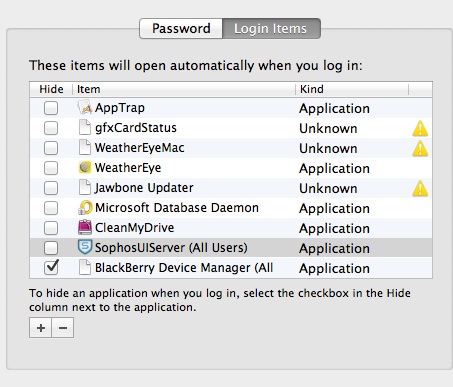
I was finally annoyed about it enough that I decided to do something about it today. I did some poking around and I tripped over this inside my login items (that’s located in the System Preferences under Users And Groups):

You’ll note the SophosUIServer item. I found it interesting that this was there and I reasoned that this was the icon in the menu bar. So I clicked the hide option and restarted my Mac. Only one icon popped up. That implied that i didn’t need this as the remaining icon was being put there by some other process. I did note that after I upgraded to OS X Mountain Lion, Sophos did a major update and the application was basically reinstalled. Thus I have to conclude that the version that was running on my Mac (8.0.6c for those who want to know what version that I have on my Mac) didn’t need this. So I highlighted the SophosUIServer entry in Login Items used the minus sign to remove it. I also took the opportunity to clean up the items that were orphaned (that’s what the yellow exclamation mark means). In my case, that meant removing WeatherEyeMac (it was an orphan when the application became WeatherEye due to a update to the application), JawboneUpdater (no longer on my computer), and gfxCardStatus (a duplicate entry due to an update to that application). I also noted that iTunesHelper was in the same state, which was strange as I still had iTunes on my computer. So I did this with the Login Items window open:

  1. I deleted iTunesHelper from the Login Items as it clearly was not working.
  2. I then found iTunes in my Applications folder.
  3. I then right clicked on the iTunes application and chose Open Package Contents
  4. I then opened the macos folder and dragged the iTunesHelper app into the Login Items window

That fixed that issue. I closed everything and restarted. On the restart everything worked perfectly. Not only that, but the menu items appeared way faster. So this was clearly a good thing to do. You may want to check to see if you have orphaned items in your Login Items as removing them seems to speed up the start up process of a Mac.

By the way, I should mention what iTunesHelper does. It’s a small application that opens up iTunes when you plug in an iPod or iPhone into your Mac. I confirmed that this was working properly by plugging in an old iPod Nano I had lying around.

How To Increase The Display Font Size In Outlook 2011 For Mac

Posted in Tips with tags , on September 15, 2012 by itnerd

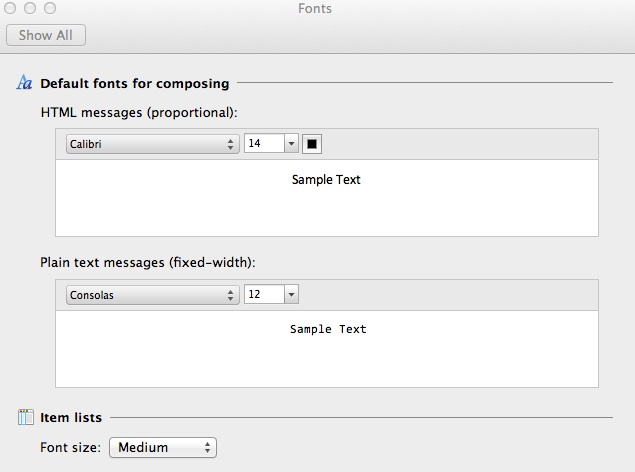
I saw a client today who expressed one particular annoyance. The display fonts in her copy of Outlook 2011 for Mac were so small, they were unreadable. I didn’t know of any way to fix this off the top of my head and I don’t like giving up on something. So I spent this afternoon looking for solution. After a couple of hours of experimenting, I found this solution:

  1. Go to the Outlook menu item and choose Preferences
  2. Under Personal Settings, click on Fonts

This what you should see:

I found that simply increasing both plain text and HTML font sizes by 2 point (in other words to 16 and 14 respectively) did the trick. But you’re free to experiment and see what works best for you.

Another option is to press Command + to increase the font size and Control – to decrease the font size. I didn’t like this option myself, but maybe you will.

Java For Mac Installer Appears On Java Website….. Mac Users Should Care

Posted in Commentary with tags , on August 26, 2012 by itnerd

Up until this past week, the only way you could get Java on your Mac was to get it through Apple. Not the worst thing in the world except for the fact that it wasn’t updated as frequently as Java versions on other platforms. That opened half a million Macs up to being infected by the Flashback Trojan. Not good. After that episode, Java support moved to being supported and updated by Oracle. That means that something like the Flashback Trojan is much less likely to happen because any vulnerabilities would be closed quickly which means that exploits like the Flashback Trojan would have a very short shelf life.

So, if you want Java for Mac and you’re running OS X Lion or Mountain Lion, you can get it here. You might want to read this before installing it though. All of that of course assumes you need Java. Most users don’t. But if you do, you should really update now.

Review: SuperDuper 2.7

Posted in Products with tags , on August 24, 2012 by itnerd

Backing up your computer is something that you should do to protect your data. After all, once you lose it it’s gone forever. On my Mac I use SuperDuper by a small company named Shirt Pocket Software to backup my Mac. The software is very simple to use and creates Apple disk images that are bootable. Why is that important? That means it’s an exact copy of your Mac that makes recovery from a disaster a snap. That’s something that you don’t appreciate until you actually need to recover from a disaster. It’s also one thing that SuperDuper has over Apple’s Time Machine backup software which won’t create a bootable image and require you to hop through a ton of hoops to get back to where you need to be in the event of a disaster.

Another handy feature is Smart Update. In short, SuperDuper is smart enough to only update the things that it needs to update which means that it doesn’t take all that long to back up your Mac. Nice!. Plus you can automate all of this so that you don’t even have to think about it. In my case, I have it set to back up my Mac two separate disk images rotating between them every week using Smart Update starting at 2AM every morning. That way I can go back a week to find something if I have to. That only took minutes to set up.

Gripes? Only one. Every since I updated to Lion (and Mountain Lion since), I’ve had this intermittent problem where I look at my Mac in the morning and there’s a request for a username and password for my D-Link DNS-323 NAS box. I can’t type in either the username or password box and I have to click cancel. The dialog box with the username and password box pops up again. I can then enter the username and password that my NAS box expects and then SuperDuper works as designed. I think that this relates to a bug that was mentioned on the Shirt Pocket blog that apparently is being worked on. But I’m not sure. Some aspects of this bug doesn’t quite fit. We’ll see when Shirt Pocket releases an update.

Ignoring that, if you want a backup program that is simple to use and gives you an bootable back up that is easy to restore. Take a good look at SuperDuper. I’m pretty sure it will be exactly what you’re looking for in a backup program. It’s free to download and use, but if you want to use the more advanced features such as scheduling backups, it’s $27.95 USD. That’s a small price to pay for data security.