Posted in Products with tags Ford on October 15, 2025 by itnerd
Interior wise, the Ford Expedition King Ranch is something else. Let me walk you through it and you will see why that is very quickly.
Let’s start with what the driver has to work with. And I will get this out of the way very quickly. Yes the steering wheel is oval. It was done to enhance the visibility of the driver when it comes the the upper screen of the two screens that this vehicle comes with. But this shape works as your hands are basically in a 10 and 2 position. Turning the wheel is a non issue as well. In fact, if you try this wheel out, you’ll find that you won’t be thinking about it after 15 minutes into your test drive. The driver display which is the upper screen is 24″. Meanwhile the lower display is 13.2″. Back to the steering wheel for a bit.It’s wrapped in Mesa Del Rio leather with Kingsville Stitching. Not to mention that it is heated.
The transmission is controlled by this knob on the left that has a manual mode. Said manual mode is controlled by the plus and minus buttons to the left of that knob. There’s a volume knob in the middle. And then various buttons to the right. For the record, that’s real wood and aluminum. And this is one of the few places that you will see shiny hard plastic. The fact that there is a minimal amount of shiny hard plastic earns Ford some bonus points as I truly feel that shiny hard plastic is massively overused in cars these days and is also impossible to keep clean.
There’s a cluster to the lower left that has the buttons for the different 4 wheel drive modes as opening and closing the rear hatch and the parking brake.
Now let’s move to the centre console. There’s two cupholders on the right that will hold Venti sized Starbucks coffee cups with ease. To the left, you have the control for trailer functions, a wireless charger on the right side, as well as a USB-A and USB-C port. You will notice an up and down arrow in the middle. Press the up arrow and you get this:
It slides the entire centre console and that does a bunch of things:
It moves the cupholders further back for second row passengers.
It creates extra storage space for front seat occupants.
It offers a semi secure space to put a bag or purse into that you can close by moving the centre console forward. And it’s only accessible when the car is on. My wife used this to put her purse into when we went on a hike in Owen Sound on the weekend.
The armrest has a rather deep storage area with a tray to hold change for parking or a pen or two.
The second row passengers have a pair of cupholders. Above those cupholders is a slot that you can put an iPad into.
The doors have pretty deep pockets in them. A water bottle will easily fit into them.
This specific trim level comes with captain’s chairs in the second row that are heated and have Del Rio Leather. They move forward and back and easily flip down. More on the flip down part in a bit. I didn’t take a picture of the front seats, but they have the same leather and are heated and cooled and are power adjustable.
There’s a pair of USB-C ports on the back of each front seat.
Between the captain’s chairs are HVAC controls for the second row passengers along with a 110V AC outlet. For the record, this vehicle has three zones for climate control.
Above you is an insanely massive sunroof.
The third row actually fits adults. I acted as the designated driver for pub night and was able to bring five people back to the respective homes with no complaints. You have to duck your head to get back there. But once you’re back there, you’re good. The seats also split 40-20-24 to allow you maximum flexibility when it comes to cargo.
The liftgate is actually in a clamshell configuration. Again, giving you the maximum amount of flexibility when it comes to cargo. Plus you can sit on the lower part as well.
Storage space behind the third row is decent but not huge. However there’s some buttons on the left side of the cargo area that can help you with that.
These buttons can help you to flip down both the third and second row. Plus there’s a lighting button on the top in case you need some extra light. And there’s a storage area there as well as some tie downs to keep you cargo from rolling around.
Flipping down the seats opens up all sorts of room for your cargo. Given that this SUV is huge, that’s a lot of cargo space that you have access to.
On the right side of the cargo area you get two USB-C ports, a 12V outlet along with a 110V outlet.
This interior is impressive. I can’t find any area where I could criticize Ford for anything. It’s truly impressive and it’s a highlight of this vehicle. But let’s see if Ford is so lucky when it comes to the tech. That’s the next part of this review and I will have a fair amount to say about the tech that the Expedition rolls up with.
Posted in Products with tags Ford on October 14, 2025 by itnerd
Over the years I’ve reviewed a lot of vehicles. But I have to admit that this is the most difficult vehicle that I have ever reviewed. Before I get to why it was difficult to review, let’s take a look at the vehicle.
Meet the Ford Expedition. This vehicle is simply huge. And I am not the target audience for it. Why is that? This is for someone who wants a a huge vehicle that carries a lot of people, or stuff, or both. And tows a lot. That’s not me. Sure I could get my wife and I along with both our road bikes in it. But we can do that in an Explorer or even an Escape as well. Thus to properly review this, I need to climb inside the head someone who would use this vehicle for what it is intended to be used for.
This is the King Ranch edition. Which I always thought was a F150 trim level. But clearly not. You see the King Ranch influence everywhere. Including:
The wheels
The interior:
And the door sill plates. There’s more places where you see this influence, but we’d be here all day if I were to point them all out. And for what it’s worth, King Ranch is a real ranch in Texas.
A big vehicle needs a big engine. Right? Well sort of. This Expedition comes with Ford’s 3.5L V6 EcoBoost Engine. It’s mated to a 10 speed automatic transmission. This combo is good for 400 horsepower and 480 pound feet of torque. So while a lot of these body on frame SUVs come with a V8, this one has a V6. And I don’t think that this is a downgrade. Because you can tow 9000 pounds with this setup. And at no point did I feel that I lacked power to merge onto a highway or pass anything. What’s even more impressive is the fact that power is easily modulated with your right foot. The only gripe that I had was that it took me a bit to get used to braking which is able to bring this rather huge SUV to a stop very quickly should the need arise. But I suppose this is a non issue if you daily drive it.
When it comes to fuel economy, it’s not as bad as you might think. The Expedition is rated for 15.4 L/100 KM city, 10.7 L/100 KM highway, and 13.1 L/100 KM combined. I hit 13.1 L/100 KM during my week with the Expedition which was better than I was expecting.
Now this vehicle as I said is huge. And this took me some getting used to as I am coming from an SUV that is much smaller. I will not call it agile, but it had a surprisingly decent turning radius. You can also get it to change lanes in a hurry if needed on the highway without it complaining. Having said that, condo owners like me should take this vehicle off your shopping list as the height of this vehicle is close to the maximum limit of my garage. And parking it in my parking spot was to be frank, comical. I say that because what is normally a 1 minute exercise is 5 minutes with this vehicle as I was taking care to make sure I didn’t hit anything. Thus I spent a lot of time shuffling this vehicle back and forth to get it into my spot without hitting the pillar to my right, or the car to my left. Good thing that it has an array of sensors and cameras to warn you if you are getting too close to an object. That helped immensely. In terms of noise, vibration, and harshness, the Expedition is generally quiet except for tire noise. And while it does bounce if you hit a bump that a bit too big, it wasn’t anywhere near as bouncy as I was expecting it to be.
One other note:
Because this vehicle has about 9″ of ground clearance, this trim level comes with retractable running boards. And if you’re anything shorter than 5′ 5″ tall, you will need them to get in and out of the vehicle.
Tomorrow I’m going to walk you through the interior of the Expedition. But here’s a spoiler alert, it’s on another level.
Posted in Products with tags EnGenius on September 8, 2025 by itnerd
What if I told you that you could get the following access point with the following specs for just $189 USD:
5,800 Mbps on 6 GHz
4,300 Mbps on 5 GHz
700 Mbps (2.4 GHz)
2.5 GbE port with PoE++ support
2×2 MIMO suppor
You may think that’s not possible. But it is possible as EnGenius has done this with the ECW520. Here’s a look at it:
EnGenius has brought an access point that is on the slim side, as well as having rounded edges. Thus for those who care about design, this access point will likely fit in with any office decor.
Underneath is a 2.5 GbE port with PoE++ support. Which is great as one cable will give you fast uplink/downlink as well as power. I should note that this does not come with a power adapter. Though it does have a 12V barrel jack and EnGenius does sell a power adapter for the three people on Earth who would need that.
Setting things up is laughably easy via the EnGenius Cloud app which is available for iOS and Android. Anyone can get it set up and running in under 10 minutes which is another plus for this product.
But here’s the real question. How fast is this? Well I had to borrow some WiFi 7 devices to properly test this as I don’t run anything with WiFi 7 at the moment. But once I secured said devices and ran my testing, here’s what I got.
1 Meter from the access point: 1.9 Gbps per second
5 Meters from the access point: 1 Gbps per second
10 Meters from the access point: 680 Mbps per second
All of this was within line of sight of the access point. If I compared it to the ECW526, it’s somewhat slower than that access point. But not by enough for me to care. Especially since the ECW526 is a whole lot more expensive. For my clients who are looking to get access points, the ECW520 may be my go to in terms of what I recommend. The price is right and the speed is better than good enough as far as I am concerned. Plus the setup is easy enough that anyone who buys one or more of these won’t have to pay someone like me to set them up. Just get an electrician to string up PoE to the right places and you’re good to go.
Posted in Products with tags Ubiquiti on June 20, 2025 by itnerd
As frequent readers of this blog will be aware, I recently upgraded my network to fully leverage my fibre connection with Distributel who is my current ISP. By putting in a better performing router, specifically the ASUS RT-BE86U, I was able to get my speeds to 1 Gbps up and down from roughly 1 Gbps down and roughly 600 Mbps up. That was good. But the next step in my mind would be to replace that router with a dedicated wired router as the WiFi 7 functionality in that ASUS router was being wasted as I disabled it due to the fact that I have no WiFi 7 devices. And I was instead using the ASUS ZenWiFi XT8’s that I have had for a while in access point mode to provide WiFi.
That’s where the Ubiquiti Unifi Cloud Gateway Max comes in. This is a very affordably priced “router” that has a lot of headroom regardless of your use case. I use the word “router” in quotes because this does more than route traffic to and from the Internet. But more on that in a second. First let’s look at the device itself:
The front of the Unifi Cloud Gateway Max has a display that is just under 1″ in size. It shows what your speeds are both up and down as well as other information like alerts for example. From the party tricks department comes the fact that you can set it to automatically turn off at night to reduce light pollution which my wife really appreciates. And if you place the Unifi Cloud Gateway Max on its side, it will automatically rotate the screen into that orientation. That’s a thoughtful touch.
The back has a bunch of 2.5 Gbps ports. None of which are PoE ports which given that Ubiquiti has a ton of products that use PoE is odd at first glance. But I am guessing that it helps to keep the price down for those who would never use PoE as you can always buy a PoE switch if you need one. Again from the party trick department comes the fact that you can define any of the four LAN ports as a secondary WAN port for failover or combining two Internet connections together. That’s welcome if you want to give yourself the ability to stay online no matter what. I may leverage that in the future with another Internet connection. The USB-C port on the left is for power. And it only sucks 16 W of power maximum which isn’t a lot of power.
On the side is a slot where you can stick an NVMe hard disk into it. Why would I want built in storage on a router you ask? Well you can use this as storage for Unifi Protect which is their surveillance system which uses this storage for an NVR. Or for Unifi Talk which is their VoIP system which can use this storage for things like voice mail for example. That’s kind of the “secret sauce” of the Unifi Cloud Gateway Max. It is capable of running the whole Unifi Application Suite if you want to dip your toe into the Unifi ecosystem. Now Unifi says that it supports “30+” Unifi devices. That doesn’t sound like a lot. But realistically, for a home or a small business, that’s plenty. For the record the company says that it supports “300+” devices in total.
One other note is that this product is tiny measuring 5.6 x 5 x 1.2″. So it will not take a whole lot of real estate regardless of where you put it.
I should note that the Unifi Cloud Gateway Max also comes with one of those famous Etherlighting cables. Basically, these are really thin Ethernet cables that light up if you plug them into a Ubiquiti switch or router that has the ability to light up the cables. I guess it’s a way to give your network rack some flair. Now the Unifi Cloud Gateway Max doesn’t have this ability. It’s also pretty short which means that you may not use it at all. So the fact that Ubiquiti included it is a curious choice.
Now setting this up should should be easy. But depending on your ISP, that may not be true. Let me illustrate by describing what happened to me.
Ubiquiti wants you to power on the Unifi Cloud Gateway Max and download their app to your phone to configure it over Bluetooth as this product has a Bluetooth radio in it. So I started there, but the Unifi Cloud Gateway Max kept saying that I didn’t have the WAN port plugged in via the display at the front of the unit. Which wasn’t the case as I had the WAN port plugged into my optical networking terminal with a known to be working Ethernet cable. As a result, it couldn’t configure itself when I walked through the setup wizard.
That took me to the second option. I got my MacBook Pro and plugged it into the Unifi Cloud Gateway Max via Ethernet and went to its default IP address to use the web based configuration. But that had exactly the same result. Which is that it didn’t think that the WAN port was plugged into my optical network terminal.
That took me to the final option which is to set up the console offline. Basically, what this option allows you to do is allow you to enter your configuration that your ISP needs and then you can save it to the Cloud Gateway Max. At that point the device will reboot and connect to your ISP. Then you proceed with the rest of the setup. Which is exactly what happened in my case.
What I can conclude from this experience is that if you have an ISP that plays nice with the Unifi Cloud Gateway Max, I can see the setup of this device taking minutes. But if not, it will take longer as you will have to puzzle through what the issue might be as I had to. Which means that if you decide to look at this product, you should be aware that the setup may not be straightforward and take some technical know how to get things working.
Another thing that I should note is that using the offline mode skips past the need to create a Unifi UI account to set things up. Which to be clear is optional, but Ubiquiti recommends that you do it. Now I will mention that while having a Unifi UI account will allow one to manage Unifi devices from anywhere, give them ability to back up configurations to the cloud, and easily deploy new Unifi devices among other functions. But the other side of that is that anytime you expose something to the Internet for any form of remote access, there’s a risk that you could get pwned. Maybe I am being paranoid on this front. But given the fact that Ubiquiti was kind of pwned via an insider a few years ago, maybe I am not being paranoid. You’ll have to weigh the perceived risk of setting up a Unifi UI account for yourself and your gear and proceed accordingly based on that risk. In my case, this Cloud Gateway Max is never going to have remote access. And that works for my security focused nature.
Once the Unifi Cloud Gateway Max was online, I ensured that the Unifi OS was updated along with the Unifi Network app. The latter being the app that allows you to control all aspects of your network and monitor things. I also set up a weekly check for any updates for both the OS and the Network app, and automatically install updates if required. Now that does break my rule of not allowing things on my network to automatically update themselves. But I went this route because I want to make sure that this device is always up to date with minimal effort as I hear that updates from Ubiquiti are often frequent which is a good thing from a security perspective. The next step for me was to have a look around the management console to see what it offered. Let me get right to the point. This device will allow you to monitor and observe all aspects of your network with incredible levels of detail. Here’s three examples of what I mean:
This is the main screen. From here I can monitor what speeds my ISP is giving me so that I can fully ensure that I am getting what I am paying for via automated speed tests that are configurable and live speed monitoring. That’s on the left side. Speaking of speeds, I have gotten speed tests as fast as 1.1 Gbps up and down which makes this the fastest router that I have tested at the time of writing this review. And that was with intrusion detection and prevention turned off. With that security feature turned on, I was consistently getting between 1.06 and 1.08 Gbps up and down. That’s not much of a penalty. Given that Ubiquiti rates this device to do 2.3 Gbps with intrusion detection and prevention turned on, that gives you a fair amount of headroom depending on how fast your Internet connection is.
Now if the stock intrusion detection and prevention doesn’t work for your needs, Ubiquiti offers a subscription to a more enhanced version that is powered by Proofpoint. The core difference between the two is that the signatures that the system uses to detect threats are updated weekly when you choose the paid option. More frequent updates means you reduce your chances of being pwned. And there are way more signatures at play. As in roughly 95K for the paid option versus roughly 55K for the stock option. The $139 a year per cloud gateway cost for this might be worth it for those who really want to protect themselves. In my case, I didn’t go that route as the stock intrusion detection and prevention system is likely going to be good enough for me. Though I may re-evaluate this decision at a later date. I do have a minor gripe about this, I kind of wished that Ubiquiti bundled this service into the price of the Cloud Gateway Max and made it subscription free. Basically what ASUS does with their Trend Micro intrusion detection and prevention product on their routers. But by not doing so keeps the price down for those who would never use it.
You’ll note that my uptime with my ISP its 99.8% when I took the above screenshot. That’s because I had a roughly 10 minute outage with Distributel which is highlighted by an orange dot on the green line below the graph in the middle of the screenshot below:
You can monitor the types of traffic that is coming and going from your network, as well as where it is coming from. That can come in handy if you’re trying to identify a device that may be too “chatty” for example. Here’s a look at what this looks like:
You can also get insights as to where your “bad” traffic might be coming from. As evidenced by this screenshot:
There’s a lot more and I am only truly scratching the surface with these examples. But the sorts of insights that you can get from this device easily rivals the enterprise grade gear that I usually play with. Now all of the examples above were via the device’s webpage. But you can get the same insights from the app as well which is available on iOS and Android. And what’s really cool is that you can manage all your Unifi gear from a single console. That’s something that is appealing to me as I am thinking about upgrading to Unifi WiFi access points in the future.
Now let’s go to the price. If you want to get the exact version of the Unifi Cloud Gateway Max that I have. Which is the base model with no storage, you can expect to pay $269 CDN. If you want storage, then there are 512 GB to 2 TB versions that start at $379 CDN. On top of that, there is a $25 CAD option that allows you to buy your own storage and install it into a Unifi Cloud Gateway Max that doesn’t have storage.
I consider the Unifi Cloud Gateway Max to be Ubiquiti’s “gateway drug” into the Unifi ecosystem. I am pretty impressed by it and I would recommend it for a variety of use cases. Be aware that setting it up might be a bit challenging as this is a device that is a significant step up from “consumer” level networking gear. But once it’s set up, it performs well and gives you a ton of options in terms how you can use it. All at a price that won’t break the bank.
Posted in Products with tags OWC on May 16, 2025 by itnerd
When I did my last office setup, I got this monitor and I ran a lot of my USB devices through it. While it was functionally fine, there were three things that I was not a fan of:
This monitor only charges my MacBook Pro at 65W.
The USB ports were limited to 5 Gbps in terms of speed.
The USB ports were limited to a max of 7.5W depending on the port.
Now I did highlight these in my review of the monitor. But I did want to address that and add some convenience to my setup. Thus after some research, I went to OWC’s website and ordered this.
This is the OWC Thunderbolt 5 Hub. I picked this hub because I wanted to future proof myself for when I replace my M1 Pro MacBook Pro with a newer model that supports Thunderbolt 5. Pictured above is the hub at the top. The power brick on the left along with a AC power cable at the bottom. Finally there’s a Thunderbolt 5 cable that’s 0.8M long and appears to be of very good quality. I do have a minor gripe about the power brick though. I would honestly have preferred that OWC took the approach that they did with the Thunderbolt Go Dock to integrate the power brick into the device. That would have made cable management a whole lot easier for me as I have a standing desk. Ideally, I would like to only to deal with cable managing one long cable as opposed to cable managing one cable and a power brick. But in the case of this hub, I had to account for the brick in both the standing and sitting positions that the desk offers. I eventually found a location on my desk for the hub, which in turn facilitated a route underneath my desk for the cable that allowed the brick to sit on the floor when the desk was in the sitting position, and have the brick slightly off the floor in the standing position. That’s not ideal, but it’s the best that I could come up with and I may revisit this at some point in the future to see if I can do better. Having said that, OWC might want to either rethink the brick as a whole, or make the cable with the barrel end connector that goes into the hub another foot longer to accommodate use cases like mine.
One thing that you will notice on the bottom of the power brick is a QR code that goes to OWC’s website where you will find any instructions that you need. There’s another just like it at the bottom of the hub itself. Bonus points to OWC for doing that as it reduces the chances that someone won’t RTFM and get into trouble as a result. Another thing that you will notice is that while the sides of the hub are aluminium, the top is made of plastic and is a bit of a fingerprint magnet.
On the back of the hub, you get a Kensington lock slot, the barrel connector for AC power, and three Thunderbolt 5 ports that do 80 Gbps bi-directionally, or 120 Gbps one way for video to say a 6K or 8K monitor. The one on the left goes to your computer and can charge it at 140W. The port next to it is where I plugged my monitor into which has this webcam, this light, and this card reader plugged into it. The port on the right is where I plugged in these speakers which allowed me to get rid of an audio cable and a USB power adapter in the process as the Thunderbolt 5 ports provide power. Plus because the speakers are now plugged into a Thunderbolt 5 port, the sound that they produce is marginally better. That’s a win right there as I get better sound and I have to deal with one less cable to manage along with having to use one less power adapter.
When it comes to monitors, the hub supports:
Up to three 8K monitors @ 60Hz
or two 8K monitors @ 120Hz
or three 4K monitors @ 144Hz
All of that assumes you have a Mac or PC with Thunderbolt 5. But I had no issue running my 4K monitor at 144 Hz or at an adaptive refresh rate of up to 120 Hz on my MacBook Pro which has Thunderbolt 4. In case you’re wondering what the holes are above the Thunderbolt 5 ports, they’re for OWC ClingOn cable stabilizer mounts which you can use to help prevent accidental cable disconnections. Those need to be purchased separately.
Now to the front of the hub where you get a USB-A 3.2 Gen 2 port that does 10 Gbps and a Thunderbolt 5 port. By having these ports on the front makes life easy for me in terms of when I need to plug in a device like a hard drive. Speaking of hard drives, I tested the speed of this hub by using this OWC hard drive. Here’s what I got:
These speeds are pretty close to the speeds that I got when I tested the same drive directly connected to my MacBook Pro. Thus I have no complaints here.
On the left side is a power button that’s flush with the rest of the hub’s case. Thus the possibility of accidental presses is basically eliminated.
On the bottom are lights that indicate the power status and Thunderbolt connectivity. It’s cool that they put these lights on the bottom as they don’t add to the light pollution that exists in my home office because of my various devices having LED lights that I can’t easily disable or hide.
Setting up the hub was pretty easy as I literally plugged everything in and was up and running in minutes. The only thing that I did not do was install the OWC Dock Ejector software. Now while I do have an Apple SuperDrive kicking around, I have not used it to burn a CD or DVD in years other than to test an OWC product. I should note that the Dock Ejector software has been completely rewritten to address what I had noticed when I reviewed the Thunderbolt Go Dock. Also, you don’t need to have an OWC dock or hub to use it as it will eject anything (disks and the like) from any vendor. More details on this latest version of OWC Dock Ejector can be found here.
Here’s the hub in place and in operation. Yes I will get around to cleaning up the cabling as I am not a fan of it either as it looks messy.
In daily usage, the hub never got anything other than warm to the touch, and I have had no issues in terms of plugging devices in and having them available for use. And I guess I should answer why I went the hub route rather than getting a dock with even more ports. Simply put, it was overkill for my needs as docks typically have things like Ethernet, card readers and the like built in. I already have a card reader and none of my computers use Ethernet. So the hub is the best way to go for me. While it would have been nice to have one more Thunderbolt 5 port on this hub, I could always daisy chain another hub with this one to get more ports.
The OWC Thunderbolt 5 Hub goes for $189 USD. Though I will note that OWC does put them on sale from time to time. This hub is a welcome addition to my office setup and frankly, I should have gotten it sooner as it solved a number of irritants that I had with my setup. Thus making my setup much more functional for me.
Posted in Products with tags Targus on April 28, 2025 by itnerd
Not long ago, I switched from a laptop bag that was literally falling apart to this Targus backpack. There’s nothing wrong with this backpack at all, but thanks to Targus, I now have an upgrade. They sent me the Terra EcoSmart 15-16″ backpack recently which looks like this:
This has a pretty modern and contemporary look to it which I like. And it’s a bit like the TARDIS. It’s bigger on the inside than on the outside. Let me illustrate that:
The very front pocket has a keyring for your keys.
One cool feature is that it has this flap that makes the zipper difficult to unzip. Handy for places like Downtown Toronto which has a bit of a petty crime problem.
There’s an expandable pouch on each side of the backpack for water bottles.
On the back of the backpack is a zippered compartment that holds a rain cover for the backpack. Handy if you use this backpack to cycle to and from work. Speaking of cycling…
It has a pair of hooks on the front which you can use to do this:
You can hang your helmet on the backpack securely thanks to those hooks. Meaning that it’s one less thing that you have in your hands or inside the backpack.
And there’s loop at the bottom front of the backpack that allows you to hang a rear light so that you are always safe when cycling.
Pro tip: I always use front and rear lights when cycling. Daytime, night time, it doesn’t matter. You should too as it will help you to stay safe.
One of the straps has a slot for a card like a bus pass or in this case, my CAA card which I am using for demonstrating purposes.
Around back there’s a mesh like weave to keep your back cool, and a strap that allows you to slide the backpack through your luggage.
The middle compartment really has a lot of space. I’ve tossed my business cards, a pen, a paper notebook and a pack of tissues in it. But I can also throw my tech sling in here with ease and have lots space left over.
The laptop compartment is very well padded and fit my 16″ MacBook Pro with no issues. One thing to note that the bottom of this compartment is suspended off the ground. Meaning that putting your laptop down will not damage your expensive computer.
Targus gets bonus points for having this zipper for the laptop compartment that locks. Meaning that stealing your laptop is now harder to steal.
Other notes about this backpack include:
I sprayed some water onto the fabric and it beads. Meaning that at the very least it is water resistant. Handy if you live in a place where it rains a lot. The zippers also appear to be water resistant as well.
8 plastic bottles were used to make this backpack. Meaning that by buying it, you’re helping the environment.
So is it perfect? Well, the only thing that I would improve is that I would have added a hidden AirTag compartment into it. Thus to put an AirTag in this backpack, I had to improvise by using one of these to hide it in a place were nobody would look for it. Having said that, Targus does make a backpack with FindMy functionality. So if you want some sort of tracking ability in your backpack, that’s an option for you.
The Targus Terra EcoSmart 15-16″ backpack goes for $70 MSRP. And you get a fair amount for your money including some cyclist friendly features. Which is why I will be using this backpack going forward. While I don’t use my bike to commute, everything else about this backpack is top shelf as far as I am concerned.
Posted in Products with tags TP-Link on April 15, 2025 by itnerd
WiFi 7 is quickly becoming mainstream. I say that because all sorts of new WiFi 7 hardware options are coming onto the market every time I look around. Today’s example of this is the TP-Link Archer GE800 BE19000:
The first thing that came to mind when I saw this was that it looked like an Imperial Shuttle from Star Wars: Return Of The Jedi. But this shape does give it some party tricks for your enjoyment. Before I get to those, you get buttons on the front that do the following easily:
Game Acceleration. This accelerates game applications, game devices, mobile games, and the like with WTFast GPN.
Turning on/off the LED lights
I am going to assume that the antennas are in each “wing.” But that’s not all that’s in them.
There’s RGB lighting on the sides which you can tweak with via the TP-Link Tether app.
Not to mention that there’s RGB lighting on the bottom as well. Now I had to turn these off during my testing as my wife thought that it was beyond over the top and ordered me to disable all of it the second she saw it. So for those of you who have significant others, you might want to keep that in mind and proactively turn the RGB effects off.
Here’s the business end of the router. Besides a USB 3.0 port for a storage device like a hard drive, you get two 10 Gbps ports. One of them is a LAN port, the other is a combo WAN port which gives you the option of running an SFP+ module. So if you have fibre Internet and you don’t need to use an optical networking terminal like I do, you can plug the fibre cable straight into the router for maximum speed. Nice! There’s also four 2.5 Gbps LAN ports but one is a dedicated gaming port. Meaning that any device connected to this port will be automatically prioritized. Which in turn means that it will give you that extra millisecond or two to pwn n00bz.
With the looks and connectivity out of the way, let’s get to the WiFi part of this. This is what you get out of the box:
4×4 2.4GHz BE: Up to 1376Mbps (20/40MHz)
4×4 5GHz BE: Up to 5760Mbps (20/40/80/160MHz)
4×4 6GHz BE: Up to 11520Mbps (20/40/80/160/320MHz)
That’s not all. You can create an SSID (network name) for each of the three bands which allows you to support special use cases such as mine where I want all the bands separate to make sure that devices, especially IoT devices have no issues connecting. And on top of that you can create an MLO (multi link operation) SSID for your WiFi devices that support MLO. That was easily done through the TP-Link Tether app. But it also has a web interface that also gives you way more customization if you want to tinker with your router’s setup. I should also mention that this router supports TP-Link’s EasyMesh which allows you to add a compatible TP-Link router to create a mesh network should the need arise.
Set up is going to be easy for most using theTether app. By that I mean that if you have a straight forward Internet connection, you can be set up in under five minutes. But it took me about 20 due to the fact that my Internet connection isn’t straight forward as it uses PPPoE and a VLAN on top of that. Thus I had to spend some time figuring out how to set that up. But once it was set up, and I did a firmware update, I was ready to go with my testing.
Let’s start with 5 Ghz testing. Frankly I wasn’t impressed when I tested this router with my iPhone 14 Pro:
I’ve gotten much faster 5 Ghz speeds with other routers in the past. But my lack of enthusiasm quickly changed when I tested the 6 Ghz band via my M2 Pro Mac mini. When I did that, here’s what I got:
My Internet connection is a symmetrical 1 Gbps fibre connection. So over WiFi it not only came close to maxing out my Internet connection, but it also recorded the fastest speeds from a router that I have ever tested. Or put another way, if I had a faster Internet connection, This TP-Link router has the headroom to support it. Impressive. And range wasn’t an issue as I was getting insanely fast speeds through walls and even outside my condo in the hallway.
Gripes? Well for starters, this router has a fan to keep things cool. Which it needs as I could feel the heat coming out the various vents that the router has. Now I had to really make things quiet to come close to hearing the hum it made. And to be clear that hum wasn’t objectionable. But I have to wonder if that fan will survive the test of time as any moving part in any device will eventually fail at some point. My advice is to make sure it’s in an open space so that heat and the potential of a fan failure less of a potential issue.
My other gripe is that features like Security+ which makes your router more secure by implementing features like intrusion detection and prevention as well as scanning your web traffic for harmful content such as malware, as well as parental controls are paid subscription services. That’s a bit of a #fail and I say that because ASUS for example just tosses these features into the cost of the router. While that does make ASUS routers more expensive than the TP-Link equivalent, at least you those features out of the gate and don’t have to sign up for yet another subscription to get those features. Plus it makes users more secure in the process as users will simply turn on those features rather than think about taking out their credit cards in order to be as secure as possible.
The TP-Link Archer GE800 BE19000 is currently $900 on Amazon.ca which is a good price for a router that performs this well. If TP-Link added the security and parental control features as part of the price, or increased the price of the router to include those features by a reasonable amount, it in my mind would go from a great router, to an almost perfect router as I really didn’t find any flaws with it. That makes this router worth a look if you are a gamer, or you have an Internet connection that can fully leverage it.
Posted in Products with tags Samsung on April 14, 2025 by itnerd
I’ll get right to the point. The Samsung Galaxy S25 Ultra is the best phone money can buy right now. And you’ll need less money to score one as of last week when Samsung cut the price. Let’s start with the design of the phone itself.
It’s a flat sided phone just like every phone seems to be these days. The thing is, that it felt really comfortable to hold in my hand, and didn’t have any sharp edges that I could feel. And despite being a big phone, it didn’t feel big. The screen also has really thin bezels as well as being bright, clear and fluid. So far I have zero complaints.
The back is where things get interesting. The Galaxy S25 Ultra features a 200MP main camera, a 50MP ultra-wide lens, and two telephoto lenses (50MP with 5x optical zoom and 10MP with 3x optical zoom), along with a 12MP front camera. And these cameras are top shelf. Let me show you three photos. Starting with a 12 MP photo:
Followed by a 200 MP photo:
Both of these photos really look good and detailed. Let’s try something different. As in a photo where I did a semi – macro shot to get this picture:
There is some blur, but it’s pretty decent. How about zoomed in photos?
It’s a weird place to see a pair football cleats, but this photo is pretty clear. Here’s a lower light shot.
Again, there’s nothing to complain about when it comes to this photo. Let’s move over to video. Here’s a 4K HDR video for you to look at:
Followed by an 8K video:
Both videos look good. But I have to say that the 4K video looks sharper than the 8K video. Likely because the 8K video is shot at 30 fps which is what the max that this phone will do at this resolution. But I seriously don’t think you’ll complain.
I usually don’t do speed tests because they are kind of meaningless at this point. Phones in general are pretty fast these days with iPhones tending to be at the top of the food chain. But the S25 Ultra isn’t too shabby putting in a Geekbench single-core score of 2,099 and a multi-core score of 8,103 from the Snapdragon 8 Elite processor. As for all the AI stuff that the phone comes with, let me boil it down to this:
The now brief that gives you an overview of your day wasn’t useful to me.
Gemini was pretty good as it allowed for conversational AI that was useful to me. Plus I can use the camera to identify objects. That’s something that I did use a few times with good results. It also goes without saying that this destroys Apple Intelligence without trying too hard.
Let’s move over to some complaints if you want to call them that. I’ll start with battery life. This phone can make it through the day. But just barely. I suspect that it has to do with the fact that it has a 5000 mAh battery and the Snapdragon 8 Elite processor isn’t exactly power friendly. A bigger battery to take you late into the night would have been welcome. Then there’s the S Pen. Some have complained that because Bluetooth support in the S Pen is gone, that hobbles the S Pen. I disagree because in my week and a bit that I used the S25 Ultra, I never used the S Pen once. So I have to wonder should it even be there in the first place as I didn’t really encounter a situation where I needed to use it. Comment below and share your thoughts on that if you are an S Pen fan.
Finally, there’s the price. The starting price of the S25 Ultra is normally $1,918 with 256GB of storage. That is pretty pricey, but after last week’s price cut, I am guessing that this will spur sales. Which means that if you want an S25 Ultra, now would be a good time to get one. It has a great set of cameras, it has decent battery life, AI features that are useful, and a build that is top shelf. You honestly can’t go wrong with this phone.
Posted in Products with tags EnGenius on February 17, 2025 by itnerd
The planet has really started to embrace WiFi 7. And companies are trying to get products out there that fill that need. EnGenius is no different as they have released the ECW516L which rolls up with the following WiFi specs:
6 GHz: 3×3 BE with up to 8,700 Mbps (20/40/80/160/320MHz)
5 GHz: 3×3 BE with up to 4,300 Mbps (20/40/80/160MHz)
2.4 Ghz: 2×2 BE with up to 700 Mbps (20/40MHz)
In terms of looks, it doesn’t look any different than any other EnGenius WiFi access point that I have reviewed. Though I will note that it does seem to be a bit thinner than I am used to.
Being a PoE product, there’s no power adapter in the box. And the Ethernet port that is included is a 2.5GB PoE+ port. That’s way less than the speed on the WiFi side of things which makes the inclusion of a port that runs at this speed a bit of a head scratcher. I would argue that this access point is a lower priced alternative to some other access points that are way more expensive than this. And if you really need lots of speed from your backbone to the access point to the client, EnGenius has the EnGenius Wifi 7 2x2x2 ECW526 Access Point for you to buy instead as that has a 10GB PoE+ port. And that’s a bit faster as well on the WiFi side of things.
As is typical for EnGenius products, it’s trivially easy to set up and manage via the web based portal or via their app which is on Android and iOS. And neither option requires a subscription. But let’s get to the speed testing as that is the only thing that really matters. In my case, I don’t have a WiFi 7 device handy to do some tests, but I do have an M2 Pro Mac mini that has WiFi 6E which support the 6GHz band and I got the following results:
1 Meter from the access point: 1.01 Gbps per second
5 Meters from the access point: 912 Mbps per second
10 Meters from the access point: 763 Mbps per second
In short, this access point with the Mac mini is still capable of maxing out my 1 Gbps symmetrical Internet connection under the right conditions. Thus I would recommend this access point to “prosumer” home users or a small business given what I am seeing here. And the price that EnGenius is selling it for reinforces that. You can get it directly from them for $199 USD. If you’re building out your home network or you’re a small business that wants to have WiFi 7 at a lower price, this access point is totally worth your time to look at.
Posted in Products with tags Asus on January 30, 2025 by itnerd
Since I reviewed the ASUS RT-BE86U and discovered how fast it was at routing traffic to and from the Internet, it made me think that I could use it improve my connection to the Internet. You see, back when my ISP of the moment was Bell and more recently with Distributel, I’ve had issues maximizing the speed that I was getting from my Internet connection. With Bell I had to bypass their hardware using some really complicated methods to do so. And when I moved to Distributel, I suffered from the PPPoE speed limitations of the hardware that I was using, which was the ASUS ZenWiFi XT8.
I started to research how I could do this in a cost effective manner because after all, networking gear is expensive. After some research, I soon came up with a way to leverage my existing ZenWiFi XT8 gear while using the RT-BE86U at the same time. Let me lay it out graphically for you and then go down the rabbit hole in terms of my logic:
My plan was to use the RT-BE86U as a pure router. As in turn off its WiFi 7 capabilities. Because that would give me 1 Gbps downstream and upstream from the Internet which is something that I do value. Then use the existing Zen WiFi XT8’s with their routing functions turned off to deliver WiFi in my condo. Now you’re likely wondering why I would use a pair of WiFi 6 mesh routers to deliver WiFi. The fact is that the fastest device that I have in my home from a WiFi perspective is a M2 Pro Mac mini that does WiFi 6E. And while it is capable of maxing out my Internet connection on WiFi 7, only having one device that is capable of doing that doesn’t justify making the switch to WiFi 7. Also, while WiFi 6 devices would see a speed boost if I made the switch to WiFi 7, I also value stability above all else. And I knew that this setup works with everything that I own. The final point that I would like to make is that this sort of setup is what I do my business and enterprise clients all the time and is proven to work. Which is to have a fast router connect to the Internet. Then install access points wherever they are needed with an Ethernet backhaul to the router. Though I am deviating from that in my use case. While I have one XT8 connected via an Ethernet cable. That XT8 is communicating to the second XT8 via a wireless backhaul. I’m doing that because I have never been able to run Ethernet cable in the walls of my condo as they are solid concrete. Thus a wireless backhaul setup from the point where my connection to the Internet terminates to the far end of my condo is the only option that is available to me.
Another factor in my decision to go this route is that it leaves open the option of using the RT-BE86U as the base for a mesh setup in the future as it supports the Ai Mesh feature. For example if I wanted to switch to WiFi 7 in the future, I just have to buy a second ASUS WiFi access point or router and add it via a few clicks to the RT-BE86U to create a mesh network. But at the same time I also have the option of doing the WiFi 7 version of what I am about to describe which is to have a pair of mesh nodes set up as access points only. Finally, the fact that I can repurpose the networking gear that I already own to make my network better means that something that I spent a lot of money on doesn’t sit in a box unused while you try to sell it on Craigslist, or worse it ending up as eWaste is a big win for me.
The first thing that I had to do is to configure the router to connect to Distributel via PPPoE. That was easy enough as I had already figured that part out with the XT8’s. Thus I carried that configuration over to the RT-BE86U router. The one issue that I ran into is that I could not get this working on the RT-BE86U’s 10 Gbps Ethernet port when I plugged it into the Nokia ONT (Optical Networking Terminal) that was supplied by Distributel to in layman’s terms convert fibre to Ethernet. But it worked perfectly fine on the 2.5 Gbps port. I found that unusual because the Nokia ONT is at least on paper capable of doing 10 Gbps via Ethernet. I really didn’t go too far down the rabbit hole on this as I have a 1 Gbps downstream Internet connection which meant connecting the ONT to the RT-BE86U’s 2.5 Gbps port is fine. But it was clear that the Nokia ONT and the RT-BE86U couldn’t negotiate a stable 10 Gbps Ethernet connection for reasons that I could not discern. Thus it’s a good thing that the RT-BE86U gave me another option to make this work via having a separate 2.5 Gbps port. And on top of that, I now have a 10 Gbps for the LAN should I need it in the future.
Once I confirmed that I had stable Internet access, I went about locking down the router. Which means doing the following:
I never use any sort of cloud management for the router nor do I expose the admin page to the outside world as those are great ways to get pwned by hackers.
I make sure that the firmware of the router is up to date.
I use a third party DNS service rather than my ISP’s DNS service. At the moment, I am using Quad9 as that blocks threats at the DNS level. And my ISP doesn’t get to monitor my browsing habits and sell that data to third parties.
I disabled PING, Telnet, SSH, and HNAP to make sure that the router isn’t accessible or seen from the Internet.
I then penetration tested it and declared it to be secure. Or at least as secure as I can make it as nothing is ever truly secure these days.
I also turned on the Trend Micro AiProtection feature as I have found over the years that it is effective in terms of keeping my network secure with no noticeable impact to the speed of my network. Now for full disclosure, it does send data to Trend Micro, but I wrote an article as to why that’s a total non issue if that is a concern.
So with that out of the way, I moved onto reconfiguring the XT8 nodes. Prior to this project I had the XT8 nodes set up with one being the router and primary mesh WiFi node, and the other one as a secondary WiFi node connected via using the second 5 GHz band as a dedicated wireless backhaul. Meaning that this 5 GHz connection does nothing other than provide bi-directional communication between the nodes. The first task was that I had to turn off the routing functions as there was no need for these to do any routing, and turn on what’s called access point mode. Meaning that these units are simply access points. To do that, I followed these steps outlined by ASUS which are mostly clear and require you to first factory reset your router. But one thing that I would like to point out is that when you put the nodes in access point mode, the 2.5 Gbps ports on each of the XT8 nodes become uplink ports rather than being WAN only ports. That’s something that this documentation doesn’t make clear and I only found that out when I was doing some testing with this configuration. Thus I used the 2.5 Gbps port on the first XT8 to connect to one of the 2.5 Gbps ports on the RT-BE86U to make sure that I was getting the highest possible speed from the router to the first XT8 node. The other thing that I found is that even though the first XT8 unit got an IP address from the RT-BE86U, I couldn’t access it over the network to do the initial setup. Instead I had to connect to it directly via WiFi to do that. Which didn’t match what the instructions from ASUS had online. Regardless, I was able to get them set up in access point mode. And what was interesting is that both nodes automatically configured themselves. Which is another deviation from the instructions that ASUS provided. I am assuming that this is due to the fact that the XT8’s come pre paired from the factory. Now to be fair to ASUS, the instructions used a scenario that involved a different product and not the XT8. But if I could offer ASUS a piece of advice, they should consider rewriting their instructions to cover a wider variety of use cases.
Pro Tip: When you get to the part about selecting an automatic IP address or manual IP address, always choose manual and pick an IP address that you can remember and document. That way you know what IP address the unit has so that you can log in and do firmware updates or tweak something.
Once I confirmed that everything was working with the XT8 nodes with their factory configuration, I next had to enable the wireless backhaul. That required me to turn on a feature called “Smart Connect” which combines all the bands into a single network that you can see rather than having a distinct 2.4 GHz network and 5 GHz network. But at the same time it turns on the wireless backhaul feature. One I turned it on I had to let the XT8’s reboot, and then turn “Smart Connect” off again which leaves the wireless backhaul feature enabled. ASUS could have made life easier if they split out the wireless backhaul feature from “Smart Connect” as turning on an unrelated feature and then turning it off again to turn on the feature that you want is a bit “janky” as the kids say, but this was only five minutes of time spent to do this so I am not complaining.
Sidebar: The reason why I don’t run “Smart Connect” is that I find that routers that combine the bands into a single network sometimes have issues with devices connecting. By separating them out, I completely avoid that problem. But I will admit that I will have the rethink that when I eventually move to WiFi 7 as part of the reason why you get the crazy speeds that WiFi 7 offers is by having this feature turned on.
I then put in all the tweaks that I have done over the years to make everything from HomeKit devices to specific devices like my wife’s ChefSteps Joule work properly over WiFi. That was a trivial exercise as I had documented all of that up front. Which by the way is something that you should do before embarking on an exercise like this. After that, I turned off the ability for all this hardware (meaning both the XT8’s and the RT-BE86U) to automatically receive firmware updates. To be clear, I do update the firmware on all my gear as firmware updates often bring security fixes and improvements that should be rolled out a soon as possible. But I do it on my schedule so that I don’t wake up one morning to no Internet access or some other weird network issue such as this situation from a few years back.
The second to last step was to shut down WiFi on the RT-BE86U as I would have no use for it. At least not today. This document from ASUS will help you to do that. And the final step is to save the configurations of both XT8’s and the RT-BE86U. This document from ASUS will walk you through doing that. That way if I needed to swap out hardware or I needed to put something back to a known good configuration, I could do that without a problem.
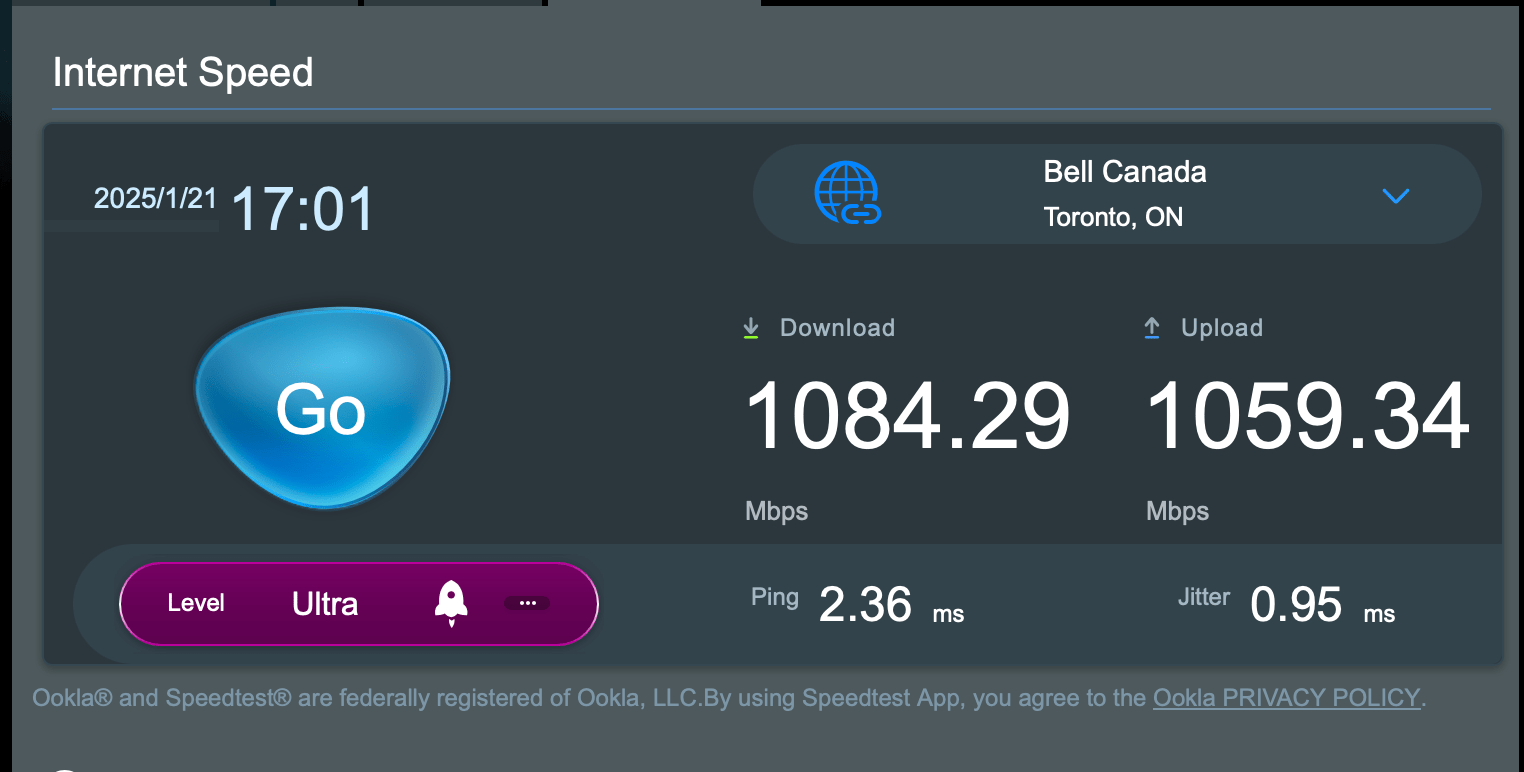
I’ve been running this for a number of days, and while I have not noted any dramatic differences, I can say that there are some “marginal gains” to borrow a phrase from Dave Brailsford (backstory on “marginal gains” here). I do notice that when I do VPN sessions to clients, that those sessions are consistently more fluid. I also notice that MS Teams and Zoom meetings are also a bit more fluid and natural feeling. As for why, one possibility is that my upstream bandwidth went from this:
To this:
It is also possible that the fact that the RT-BE86U is much better than routing versus the ZenWiFi XT8 was could also be playing a role as well. Or it is both at the same time. Or perhaps it’s something else that I am not able to discern. Without going into the weeds to figure it out, it’s hard to say. But I will take any improvements that I can get, no matter how marginal. One thing that I have to say is that I am paying to have 1 Gbps downstream and 750 Mbps upstream from Distributel, and I am getting more than I am paying for by making this change which is great.
Do you have any questions about what I’ve done here? If you do, leave a comment and I will be happy to answer them as doing this was a win for me, and it might be a win for you as well.