Archive for the Products Category

Review: OWC USB-C Dual HDMI 4K Display Adapter

Posted in Products with tags on December 4, 2024 by itnerd

After I got my new monitor, my wife decided to claim my old monitor to add it to her desk setup. Her logic was that it both monitors were exactly the same and she could use a dual display setup as she was working from her MacBook Pro screen and an external monitor. To get some help with this, I reached out to OWC and they sent me this:

Meet the OWC USB-C Dual HDMI 4K Display Adapter. This will allow you to connect two HDMI displays to your Mac (or PC, Chromebook, Ubuntu box) as per this picture:

It supports resolutions of up to 4K 60Hz and it has a power pass through so that you can charge a laptop while having this plugged in as per this picture:

Extremely minor gripe. I would have loved to have seen an extra USB port so that I could plug in a device or a hub to truly get a one cable solution. But for those who run MacBook Air’s or other M1, M2 or M3 models (meaning not Pro or Max chips) that lack multiple display support, I seriously doubt that they would complain.

Here’s what I did to make this work:

  1. Plug it into my wife’s MacBook Pro.
  2. Plug in the monitors.
  3. Plug in USB-C power.
  4. Install the DisplayLink drivers as this is a DisplayLink product. Thus it will not work if the drivers are not installed.
  5. Done. Declare victory and have a beer.

The product has worked flawlessly since then. I also don’t notice it getting hot or anything beyond it being mildly warm. However my wife has reported two “issues” to me since it was installed. I put the word “issues” in quotes because they’re side effects of sorts of the fact that this uses DisplayLink tech. The first was that she could no longer watch Netflix on her computer via Firefox. The reason why was that Netflix likely sees this adapter as some sort of way to circumvent whatever digital rights management Netflix uses as per this. The workaround of disabling graphics acceleration or hardware acceleration depending on what platform you’re on that was mentioned in the thread from the DisplayLink forum that I linked to does work to address this.

The second “issue” was this:

My wife was surprised by this and was questioning if the DisplayLink Software was recording what she was doing as she often works on highly sensitive files on her Mac. The answer is no it isn’t recording everything she’s doing. Here’s why directly from DisplayLink themselves:

macOS Catalina 10.15 requires the user to permit “Screen Recording” in order for DisplayLink devices to work properly. The message is generated by the OS and the screen is not actually being recorded by DisplayLink. Approving it enables the DisplayLink driver to access the pixels it needs to render a mirrored or extended screens, and send the pixels over USB from your computer to the DisplayLink display. It does not send any data or pixels back to DisplayLink.

The above is also true for later versions of macOS. And is likely due to the security built into macOS that warns you about anything and everything that it perceives as a threat (and rightly so). But here’s the TL:DR. Your screen isn’t being recorded. Period. Thus you can ignore this warning and return to your normal daily activities. And if you are wondering why I am taking DisplayLink’s word for it, the reason is simple. If their software were actually recording the screen, someone would have been able to prove that by now and DisplayLink would be in deep trouble. On top of that, DisplayLink’s tech is used by everyone from OWC, Dell, HP and Lenovo. Those companies wouldn’t want to be within 100 feet of DisplayLink if they were doing something shady. Thus I am confident that there’s truly nothing to see here.

Priced at $94.99 USD, this is a great solution for those with any M1, M2 or M3 Mac (meaning not Pro or Max chips) that doesn’t support multiple displays. I got it to work without any issue, and it’s stayed working. This this is another easy recommendation of an OWC product as it’s a must buy if you fit the use case of the product.

What’s In My Tech Sling – The 2024 Edition

Posted in Products with tags , , , , , , , , , , , on November 17, 2024 by itnerd

When I get a phone call from a client from a client to assist them with some sort of tech issue, I need to grab a handful of things that I know that I will usually need on a job and go. For years, I’ve sort of scrambled to find what I need on a moment’s notice. To make my life easier, I have built up a tech sling bag that has my commonly used items that I need when I go to see a client. By doing this, I simply have to do a “grab and go” and I can add it to my backpack if I need to as it doesn’t take up a lot of space. Let’s start with the bag itself:

The is the tomtoc Explorer-H02 EDC Sling Bag in the 8 inch size which has an outer compartment that holds miscellaneous items, a compartment in the back that holds one item that I will get to in a moment, and a middle compartment that holds the majority of my gear. Because it is a sling bag, it goes over my shoulder which is handy if I am just using it by itself. But it will also fit inside my laptop bag or backpack.

Inside the sling bag is this OWC Envoy 1 TB SSD which recently was added to the sling bag. It doesn’t take up a lot of space, but it is quick. That makes it ideal to travel with and use with my clients.

 The Victorinox Cyber Tool on the right the next item in my sling bag I find this to be extremely handy to do everything from open boxes to disassembling computers. Attached to that is Olight i3E EOS flashlight which makes life easier for me when I need light in a dark corner of a computer case or a room as it gets pretty bright.

I usually have a few random USB sticks with utilities on them. Such as malware scanning or unlocking utilities. But I also have a SanDisk 128GB Extreme PRO flash drive which occasionally comes in handy with clients. Though with the 1TB OWC drive, I have to admit that I am rethinking whether I need to have that in my tech sling.

I’ve got an Apple AirTag in it so that if I misplace the tech sling, I can find it easily. Because I have left a customer’s site a few times without it, and then had an alert pop up on my iPhone telling me so. It’s inside a Belkin AirTag holder which makes sure that I can attach it to a loop inside the sling bag.

I have a plastic bag with batteries. Specifically some AA, AAA, CR1632, and CR2032 batteries. Because there have been numerous times where a customer had an issue that was solved by a battery, and the customer didn’t have any spare ones. Thus I cover myself for that eventuality.

I also carry a bag with some Woosh Screen shine and a microfibre cloth as I never know when I might need to clean a computer’s screen or keyboard. Be it mine or somebody else’s. This stuff works really well and it’s currently my go to for my computer cleaning needs. I also have some Q-Tips in the bag to get to those hard to reach places.

I have a small bag with a bunch of USB-A to USB-C and USB-C to USB-A adapters as they come in handy for customers who need to plug something into a computer and don’t have the right adapter.

Another recent addition to my tech sling is this Anker Ethernet to USB-C adapter that runs at 2.5 Gbps. Ideally, I would want to have a 10 Gbps adapter in my sling, but those are still pretty pricy. Thus this will work for me until prices drop.

To cover off any charging needs that I or others might have, I have a UGREEN Nexode 100W charger that has three USB-C ports and a single USB-A port. I can charge anything from phones to my MacBook Pro to my iPhone. Most of the time, I’ve used it to charge my client’s stuff quickly.

I have a variety of cables in my tech sling, starting with this Anker 100W USB-C power delivery cable for charging purposes only.

I also have an HDMI cable that comes in handy when I have a MacBook Pro and I need to plug into a projector or TV at a client’s site.

I also have a flat Ethernet cable which comes in handy when I need to plug into something using the Anker Ethernet adapter that I spoke of earlier.

The key cable that I carry is a RollingSquare InCharge XL which is my one cable to rule them all. I say that because it will cover any use case that I may need when at a client’s location as it is good for data transfer and for charging.

I also have that cable’s little brother the RollingSquare InCharge X as it it sometimes is handy to have a second cable that doesn’t take up a lot of real estate. It’s beaten up as it once was on my keychain. But it works just fine.

The second last item is this GearAid HeroClip. What this is for is to allow me to hook, hang, and carry my gear. I have it because if I have to use a public restroom, there is often no place to hang a jacket, or the sling bag, or a laptop bag. Thus making this piece of kit extremely handy. I got the large size to make sure that I could hang anything that I needed as it has a 100 pound weight limit.

The last item is this pen. Because everyone needs a pen.

So that’s what is inside my tech sling bag. This works for me, but I would be interested in hearing from you in terms of what you think I should add to it or change. Please leave a comment below and share your thoughts.

My Every Day Carry (EDC) – The 2024 Edition

Posted in Products with tags , , , , , , , , on November 16, 2024 by itnerd

My every day carry or EDC has evolved slightly since the last time that I covered what my EDC consists of. I’ve tweaked some of the items that I carry not only for meeting my daily needs but to add some style as well. So let’s have a look at what my EDC consists of the following:

I am still using the iPhone 14 Pro as it’s a fast phone and none of the Apple Intelligence stuff or the camera upgrades have enticed me to switch to the iPhone 16 Pro. I have a dbrand Grip Case on it and I protect the screen with a dbrand Prism 2.0 screen protector. The only thing that I have done to the phone is have the battery replaced under AppleCare when the battery health went below 80%. Now for formal occasions I have been known to switch my case to this one from Mujjo, but I might be able to get away with not having to do that as the dbrand case is something that I might be able to roll with for any occasion. We’ll have to see the next time I have to do something super formal.

I now use the original Apple Watch Ultra as that fits with the sports and other athletic activities that I do. I’ve had this for over 2 years and the battery health is currently at 94% which is outstanding after two years. While you see it here with the Apple Nike Sport band, I do have a selection of bands that I can swap to if the need arises. Including this recent addition. I’ve also customized the watch with apps that make it close to a Garmin watch as that fits with the fact that I am a very athletic person.

Next up is the Ekster Carbon Fibre Cardholder which is made of 3K carbon fibre. All the cards and ID that I need are in this slim and light package that I barely notice in my pocket. It does have RFID blocking capabilities which is a good thing. One thing that I should point out is that if I am wanting to slim down what I carry, I can switch to either this MagSafe wallet for formal occasions, or this MagSafe wallet if I am going for a bike ride. In either case, I just take my ID out and place it in the MagSafe wallet of choice and the wallet on the back of my iPhone 14 Pro.

I make sure that I know where my wallet is at all times by having this Zike Smart Tracking Card inside the wallet which integrates with Apple’s Find My network. One thing that I really like about this tracking card is that unlike a lot of them, this one is rechargeable. So when the battery goes dead, I just toss it onto a wireless charger and I get a charge that lasts about six months as opposed to having a card that works for about two years that you then have to replace when the battery goes dead.

If I want to listen to music while I am on the go, my Apple AirPods Pro is my go to as they allow you use active noise cancelling to shut out the outside world, or use transparency mode to stay aware of what’s going on around you. I have been wanting to replace them with the AirPods Pro 2 but these won’t die. They are wrapped up in the dbrand AirPods Pro Grip case to make sure that I don’t drop and damage them. I should also mention that I did replace the stock silicone ear tips with the Comply Foam Tips which not only make the AirPods Pro feel more comfortable in my ears, but they allow the AirPods stay in my ears better. They also sound better and noise cancelling works better.

When I am not driving, my sunglasses of choice are the Rudy Project Zyon’s. My wife originally got them with the prescription inserts. But she then moved onto a different Rudy Project model. Thus I took them, removed the inserts and have been using them ever since. I really like these as they provide a great amount of coverage, which means better protection for my eyes.

My keys are the next things that I grab. My keys are in a KeyPort Pivot 2.0 key holder which on the inside I have a 64GB USB stick, a multi-tool that in a pinch can open an Amazon box, a SIM card ejector tool, and a pen. Oh yeah. It also has my keys as well. One thing that I appreciate about this setup is that keys don’t dig into my thighs and they don’t jingle. I also have my key fob for my condo along with an Apple AirTag on them to find them when I misplace them. Since you can’t directly mount an AirTag to anything, I use the Belkin Secure Holder with the AirTag as it’s secure and cheap relative to the cost of what Apple wants you to pay for their products.

If I am driving I take my car keys with me as well, and they too have an Apple AirTag along with a Belkin Secure Holder on them.

The Groove Life Groove Belt is a great addition to my EDC as I can use it for formal occasions or just wearing jeans. It comes together using some really strong magnets and you feel like a superhero when you put it on. I’ll also point out that you can resize it at will which is handy as I have steadily been losing weight over the last couple of years.

The last item is some Blistex or some other form of lip protection as I get really dry lips.

That’s my EDC or every day carry. What do you think? What do you think I should add to it or change? And were you able to spot the theme? Drop a comment below and share your thoughts. In the meantime, stay tuned for a look at my Tech Sling that I carry with me when I see clients as that has a lot of interesting things in it.

Review: GE Cync Full Colour Direct Connect Smart Bulb

Posted in Products with tags on November 13, 2024 by itnerd

For the last few years, I’ve had two of these smart bulbs in my den. But over the last week one would just randomly factory reset itself. After the third time that happened, I figured enough is enough and I replaced both. After doing some research, I finally settled on the GE Cync Full Color Direct Connect Smart Bulb. What led me two this bulb were two things:

  1. These were Matter compatible. Matter is a common standard for smart home devices. So if your smart home platform (Namely Apple HomeKit, Google Home, Amazon Alexa, or Samsung Smart Things for example) supports Matter, your latest smart home device should work. More on that later.
  2. The price which was $19.99 CDN for each bulb at my local Best Buy which for whatever reason seemed to be the only place that had them in stock.

Here’s a look at the packaging that this bulb comes in:

What’s interesting about this is that Apple HomeKit isn’t mentioned. In fact, looking around the box the only mention of Apple that I could find is a sentence where it says that it supports “Apple Home” which isn’t a thing. I guess GE didn’t pay Apple to use the HomeKit logo or something. That’s something that may dissuade less tech savvy consumers from buying this bulb unless they really take the time to read the box, or they see the Matter logo and automatically know it will work with Apple HomeKit.

Anyway, here’s the bulb:

It’s unremarkable really. But on the back side of the bulb is a sticker with the Matter pairing code and the associated QR code. So that should mean that I should be able to do the following:

  1. Screw the bulb into the light fixture’s socket.
  2. Open up the Home app and click on the “+” sign at the top right and choose “Add Accessory”
  3. Scan the Matter code
  4. Sit back and wait for it to be added to my HomeKit setup
  5. Repeat steps 1-4 for the second bulb as the second bulb as the light fixture had two bulbs.
  6. Declare victory and have a beer.

That’s not how it went down. I got as far as step three and after a couple of minutes I got an error that the bulb could not be added to HomeKit. I figured that it was a fluke so I tried it again and got the same error. Perplexed I picked up the box and read the instructions as I have to admit that I YOLO’ed things as I had made the assumption that this would be simple to add. That’s when the light bulb went on metaphorically speaking. This is a Matter device that requires a 2.4 Ghz WiFi connection. My iPhone is normally on the 5Ghz bands because I have two separate WiFi bands on my WiFi network. That’s to keep the “slower” devices on 2.4Ghz and the “faster” devices on 5Ghz. I reasoned that because my phone was on the 5Ghz band, it couldn’t talk to the bulb to connect the bulb which was on the 2.4 Ghz band. To address that, I connected my iPhone up to the 2.4Ghz band. Then tried to add the bulbs again. It took two tries for each bulb for whatever reason after I factory reset them using these instructions, but I got it to work.

This in a way illustrates the fact that smart home gear should be easy to install, but sometimes isn’t. In my case my issues were due to how my network is set up, which to be clear isn’t weird as a lot of people run separate WiFi bands as opposed to having a single network that encompasses both bands. So you think this would have been accounted for. But clearly not. And for a less tech savvy user, this might have resulted in them returning these bulbs to Best Buy. The take home message is that Matter clearly has teething pains that need to be addressed in order to make the user experience better.

Anyway in testing these bulbs, I found the response times to be quick. Be it just simply turning them off or on, changing the colour, or increasing the brightness. Speaking of the brightness, these bulbs can get insanely bright. The box says 800 lumens and I believe it. I’ve set them to 70% of that by default. But I’ve created HomeKit scenes that can boost them to full brightness or dim them to 40% of 800 lumens. In terms of colour range, that too is insane as you get a number of methods to dial in the colour of the bulbs:

I have them set to a cool white which works for my wife and I.

All of this is available in the Home app on my iPhone. But I assume that it is similar on other home automation platforms. The other thing that the Home app is supposed to handle firmware updates for these bulbs. That is a good thing as firmware updates aren’t just for functionality and bug fixes. They’re for security as well. And a lot of users don’t update their firmware leaving them open to something bad potentially happening to them.

Now I should mention that these bulbs to have their own iOS and Android app. But if you use one of the major home automation platforms, there’s no reason for you to use that app. Conversely, if you do want to use the app because you’re not on one of the major home automation platforms, setting up these bulbs and controlling them is insanely easy based on tests using a third bulb that I purchased for experimentation purposes. I didn’t encounter any of the issues that I did encounter via Matter.

So would I recommend these bulbs? They do work. The price is great. But you might have issues with the setup which have more to do with Matter than with the bulbs one suspects. So if you by them knowing that you may have to put in some more work than you planned on to get these bulbs operational, you won’t be disappointed.

Review: UGREEN 4-in-1 USB 3.0 SD Card Reader

Posted in Products with tags on November 12, 2024 by itnerd

I am in the midst of finalizing my new desk setup having made some major changes. I’ll be sharing the final result with you in the coming weeks. But right now, I’m here to talk about one of those changes. Which is the UGREEN 4-in-1 USB 3.0 SD Card Reader/

So the reason why I need this is that I am redoing my desk setup to support having my MacBook Pro in clamshell mode. As in the lid is closed and connected to an external monitor. So I wanted to either replicate on enhance the ability to read SD cards and the like. I went the enhance route and got this at Memory Express for $22.99 CDN. One the front, there’s a Compact Flash card slot at the top and a Sony Memory Stick Card slot on the bottom. I don’t have any of those and I don’t know who else would have any of those. But if you have one of those, it’s there.

On the right side there’s a SD Card slot at the top and a Micro SD card slot at the bottom. Short of doing CF Express cards which I don’t have any, I’m covered for most situations. One thing that I should point out is that this card reader is a fingerprint magnet. Though it’s not visible in the picture, there’s also a blue light that seems to only indicate that it is plugged into a USB-A port and getting power. The light isn’t all that bright so you can leave it connected without lighting up a dark room.

In terms of performance, I plugged it into a USB 3.1 Gen 1 port that does 5 Gbps, and used a SD card that was rated for 95 MB/s read speeds and got this result:

91.14 MB/s validates that this card reader is performing very close to expectations and the card reader along with the USB bus isn’t really holding it back all that much if at all.

One cool feature is that each card slot appears to act independently. For example, if I pop in a Micro SD card and an SD card, both will appear on the desktop of my Mac and I can copy items between them. I don’t know when I would need such functionality, but it’s handy to know that I could do that if I needed to.

Honestly, I have no complaints or drawbacks about this card reader. It does the job by supporting a number of card type, it’s fast, and doesn’t break the bank. I highly recommend it.

Review: dbrand Grip Case For AirPods Pro

Posted in Products with tags on November 11, 2024 by itnerd

I’ve recently invested in a dbrand case and screen protector for my iPhone 14 Pro. In case you missed that review, it’s right here. While I was at it, I figured that I would update the protection for my AirPods Pro. Thus I decided to also grab the dbrand Grip Case for AirPods Pro. Here’s the box that it comes in.

Inside the box you get the case, And below it a SIM ejector tool that you can use to thread the lanyard that comes with the case through the case, a black triangle that is meant to help you to remove the case, and to the right a skin for the case and an extra set of stickers for the top part of the case.

Installation was easy enough. But just in case, dbrand have provided this video to help you with that. And that installation took less than five minutes. The net result was this:

The carbon fibre is on brand for me and fits with the Grip Case for my iPhone 14. The lanyard is a nice touch as well. The bottom portion of the case fits really tight. So including a tool to help you to remove it makes sense. But the real star of the show is the fact that the case has a texture that borders on sandpaper along with what dbrand calls grip strips to ensure that your hand. The button is pretty click and the light on the front is clearly visible. No complaints from a fit and finish perspective. The company also promises “military grade drop protection”. But they don’t say what that means specifically. I’ll also note that wireless charging works. But I don’t have the ability to stick the AirPods Pro case to a MagSafe adapter as the magnets in the AirPods Pro case don’t have as much sticking power as it did when it didn’t have a case. Having said that, the case doesn’t really add that much thickness to the overall package.

The only downside that this case is the price. It’s $34.90 USD. You can find AirPods Pro cases on Amazon for less money. So you have to decide if going the dbrand route to protect your AirPods Pro is worth it for you. It is for me as it makes my everyday carry a bit more cohesive. Which is why I’ll be rolling with this case until I need to replace my AirPods Pro. Which hopefully won’t be anytime soon.

Review: dbrand Prism 2.0 Screen Protector & Grip Case

Posted in Products with tags on November 8, 2024 by itnerd

Given dbrand’s recent issues with racism, I wasn’t going to do business with them again. But I needed a new case for my iPhone 14 Pro which just had its battery replaced under AppleCare. You see I don’t find the iPhone 16 series a compelling upgrade. And the case that I have been using since I got the iPhone is on its last legs. Likely because it is being used pretty hard for anything like my daily activities, to being in the back of my cycling jersey, to cross country skiing. Seeing as this phone has to last me one more year, I thought about it and decided to give dbrand another chance by ordering their Grip Case. And while I was at it, I also decided to get their Prism 2.0 screen protector as the one on my iPhone has been there since the day I got it.

Let’s start with the Prism 2.0 screen protector. This is billed as an “idiot proof” screen protector. Now I was skeptical of this as if you make something idiot proof, God or whatever deity you worship will build a better idiot. But I think that maybe dbrand is on to something. And it starts with the packaging.

The screen protector comes in a box that feels like it’s oozing quality. Open it up and you get this:

In the middle, you get the screen protector and some documentation along with the cleaning kit which is under the scree protector. dbrand has also made accommodations for all types of users. For those who can read instructions, you’re covered on the left side of the box. But on the right side there’s a QR code that takes you to an installation video. Handy for those who live in places like Florida and Texas where they ban books and by extension don’t want you to read things.

Now I could describe how insanely easy it is to install this screen protector, but I’ll use the video that is aimed at those who can’t read instructions.

Now I have installed lots of screen protectors in my time. This by far was the easiest that I have ever installed. There were no bubbles or dust or smudges after installation. The Prism 2.0 features premium tempered glass which dbrand claims hits a 7 on the Mohs scale of mineral hardness. I didn’t test that. Thus I will take their word for it. I also note that the coverage of the screen protector looks like it hits the limit of what the size of a screen protector can be on a phone without interfering with a case. I did try the dbrand case and a case from another brand to see if the case interfered with the screen protector and found no issues. You get two of these screen protectors for a rather pricey $34.95 USD.

Now let’s move on to the Grip case. You can buy the case for $59.90 USD and add a skin to it so that it stands out. In my case, I did order a carbon fibre skin as if you’ve seen my most recent Everyday Carry article, is on brand for me. The case is MagSafe compatible which means that it will work with MagSafe devices, but when you put it on your phone it won’t do the MagSafe animation. That I suspect is a non-issue for most. The magnets felt decently strong without the skin on it. But they felt a bit weaker with the skin on it.

Putting on the skin is easy if you watch this video first. I didn’t so I sort of YOLO’ed it. But I have installed enough dbrand products over the years that I know how to do it without screwing up.

Here’s the result:

The case adds minimal bulk to the phone. It’s really thin and it is grippy as dbrand says it is. Here’s why:

The case is textured and has an almost but not quite sandpaper feel to it. Plus the shiny bits are additional “grip strips” as dbrand calls them. Seeing I suffer from “butterfingers”, this case might help with that. Speaking of drops, dbrand claims that this case has “military grade” drop protection. But they never say what that actually means. And for the record, I have not dropped my phone since getting this case. Which implies that the grippy part of this case works as advertised. I should also mention that the buttons on the case have a very tactile feel to them.

There’s as lip around the back of the case that not only protects the camera lenses, but it allows the phone to lie flat on a table. That’s brilliant. And you can see that I applied the carbon fibre skin not only on the case, but around the camera lenses as well. And the carbon fibre feels really nice in the hand. It actually feels like carbon fibre.

One thing that you can’t see from these images is the fact that this case comes with chamfered edges which is along the case’s front lip. That gives you full access to the top and bottom of your screen. And the sides are a bit lower in the middle than on the edge. All of this allows you to navigate your phone a bit easier.

I should note that the inside of the case is lined with microfibre. That’s something should help to make sure that your case doesn’t scratch your phone. The fit of the case is tight which means that it’s more likely to be able to better protect your phone should you drop it.

The only downside to this case is that it collets lint like a lint roller. Well maybe not that bad. But it’s not uncommon for me to pull my phone out of my pocket and have lint all around the edges. If that’s something that you think might bother you, you might want to look elsewhere for your phone case needs. Plus it is a pricey case. That will turn some people off for sure.

Hopefully this combo will keep my phone protected for another year until hopefully a compelling iPhone comes out that will entice me to upgrade. Do I recommend the dbrand Prism 2.0 and Grip Case? Well, in the few days that I had them, they seem like they deliver on what the company promises. We’ll see long term if that changes. But in the here and now, both products seem like winners to me.

Review: TP-Link Deco X50 AX3000 WiFi Router/Access Point

Posted in Products with tags on November 6, 2024 by itnerd

When I signed up for Distributel, one of the things that I was offered was what they described to me as a “WiFi pod”. I only took one as I had zero intention of using the gear that an ISP provides as that’s a form of lock in by said ISP. But what I got was a pre-configured TP-Link Deco X50 WiFi router/Access point as opposed to something unique and custom made for the ISP. That piqued my interest.

The Deco X50 is a WiFi 6 dual band router that when you have two or more of these can also deliver mesh WiFi. Let’s have a look at it:

From the front, it’s rather unremarkable. Which is good as it will fit into any decor.

From the back you get three gigabit ethernet ports. Any port can be used to connect to your ISP. But because they are all gigabit, you’re limited to gigabit speeds. Which makes the X50 not the correct choice if you have faster than gigabit service.

Now each X50 unit has only two radios. A 2.4GHz one and a 5GHz transmitter that handles both client connections and backhaul traffic. Having a third radio for backhaul traffic would be better for a lot of people who have a lot of devices in a mesh setup as that will create some amount of congestion between each unit if the traffic between the two is high enough. But only having two radios keeps the price down which I suspect was the priority here.

Power users will be disappointed with the fact that there’s no web page with advanced configuration options as everything is done through the Deco app, although there is a web based status page. To be fair you can configure a number of things via the app form the initial setup, which by the way is easy enough for the average person to do, to some more complex tasks as turning on QoS or using their parental controls subscription service. In terms of the parental controls service, the fact that parental controls are a subscription service that you have to pay for is a bit of #fail as competitors ASUS offer that for free.

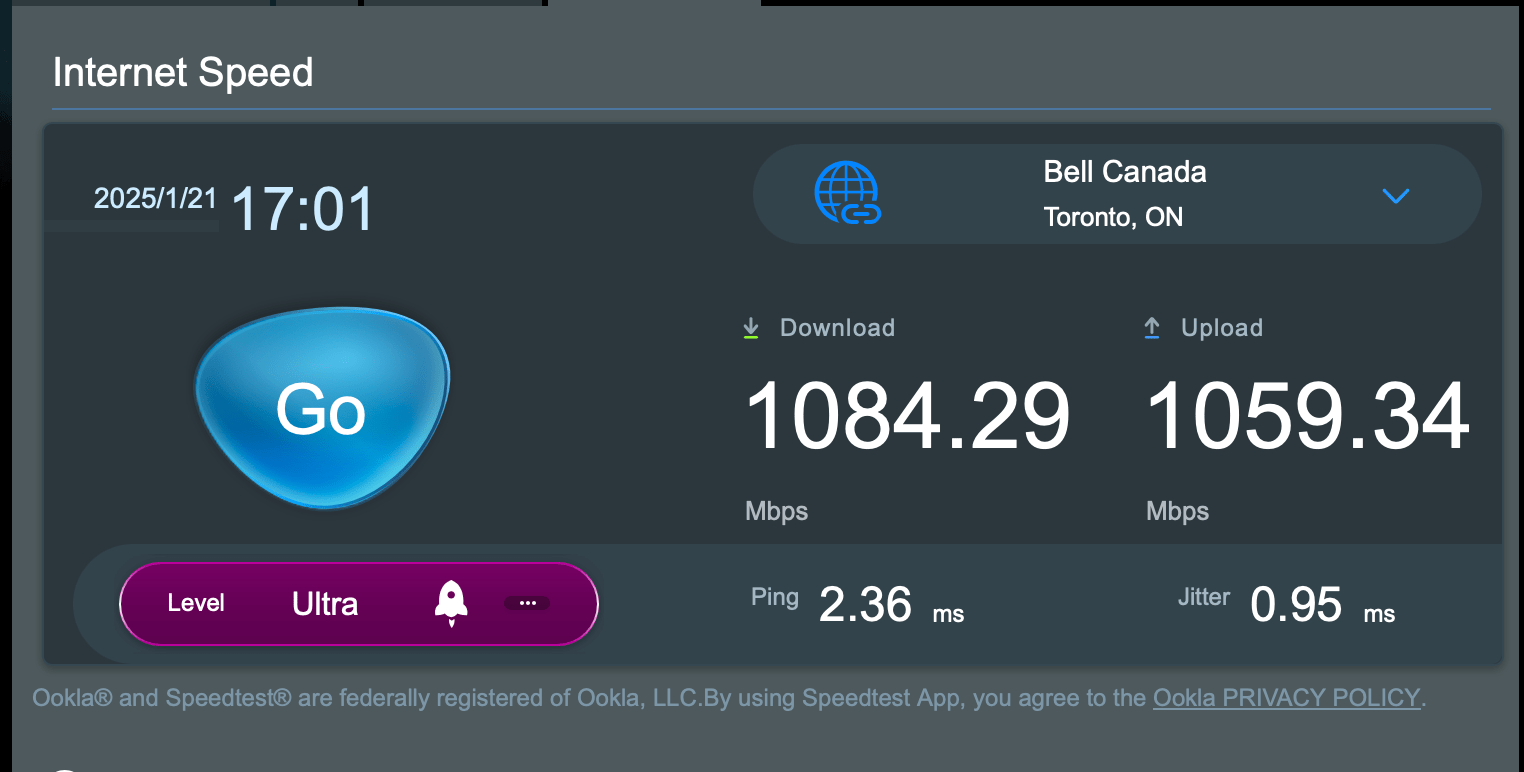
Now in my testing, performance was actually decent. Let’s start with the performance from the Optical Networking Terminal that Distributel supplied to the X50:

Now I had to test this via plugging in an Ethernet cable to my MacBook Pro because I couldn’t find a speed test built into the router or the Deco app. But this result is better, especially on the upload end of things than my ASUS Zen WiFi XT8 which isn’t that good when it comes to upload in PPPoE scenarios. Further validating that I need to dump the ASUS gear for something better as I am clearly leaving some speed on the table by using the ASUS hardware.

From a WiFi perspective, the performance was also decent. This result was from about 5 feet from the X50:

That’s competitive with the XT8 which also supports WiFi 6. So from a performance perspective, it doesn’t suck. Though I do wonder how it would perform with multiple units and a lot of traffic given that there’s no dedicated backhaul.

So would I recommend the X50? It depends on the type of user your are. If your needs are modest. As in you need WiFi 6 in your home and you’re not doing anything crazy, this might be an option for you. If you’re a power user or you have faster than gigabit internet, you should likely look elsewhere. At least the price is better than decent as I found a pair of these for $179 CAD on Amazon. Thus if you fit the use case for this WiFi router/access point, it’s worth looking at in my opinion.

Review: Twelve South MagicBridge Extended

Posted in Products with tags on October 5, 2024 by itnerd

I’ve been working on upgrading my desk setup and I’ll be doing a story on that shortly. But in the meantime, I’ve been looking for a way to better use the Apple Magic Keyboard and Magic Trackpad that I’ve recently acquired. The main issue that I’ve had is that one or the other would move. Thus I couldn’t use muscle memory to control and type on my Mac. Thus figuring that I wasn’t the only person with this issue, I did some hunting around and came across the Twelve South Magic Bridge Extended.

The MagicBridge Extended is a plastic tray that fits the MagicKeyboard that I have along with the Magic Trackpad. The grey section is where the keyboard goes if you’re right handed. Or you can move it to the left to set it up the other way around.

The bottom has holes that allow you to push out the keyboard and trackpad should you need to.

This is the end result with the keyboard on the left, and my Snapping everything in is simple because TwelveSouth put out this video that shows you how to set things up:

I had no issues setting things up after I watched this video and it only took a couple of minutes.

The back of the MagicBridge Extended has holes that not only allow Bluetooth signals through, but also give you access to the on/off switch as well as the Lightning port for charging.

So I have used this setup for a couple of days. And once I found a position where I could type and use the Magic Trackpad without it feeling weird, I found that it worked quite well. By “weird” I mean that you have centre the keyboard part of this setup so that typing feels normal. That puts the trackpad out to the right in my case as I am right handed. I can see how that might be an issue for some. And for those who have a bit of OCD about centring everything on your desk, that might be a bit of an issue too. Since the keyboard and trackpad are one piece, I can use it on my lap if I so choose. It also allows me to move the keyboard and trackpad out of the way quickly if I need the surface of the desk for something else. But the main goal was to keep the keyboard and the trackpad in a consistent place where muscle memory would allow me to be productive as nothing was moving about. And it succeeds on that front. Overall, I like the setup.

The MagicBridge Extended is $50 USD directly from Twelve South. But if you have the Magic Keyboard without the number pad, they have a version for that use case as well which is simply called the MagicBridge. If you own a Magic Keyboard and Magic Trackpad and you want to make them even more useful, The MagicBridge Extended or MagicBridge is absolutely worth looking at.

Review: OWC Thunderbolt Go Dock

Posted in Products with tags on September 30, 2024 by itnerd

When my MacBook Pro is set up at my desk, I use a dock to create a “1 cable solution” to charge and provide extra ports like USB ports and card reader ports. I do that because it’s a lot easier to access the dock’s ports rather than the ones on the MacBook Pro. And a dock often adds additional ports that I didn’t have before. With that background out of the way, I was intrigued by the OWC Thunderbolt Go Dock that OWC sent over for me to review. And after using it for the last few days, I can conclude that it is a dock that you should go out and buy if you want a dock that provides a load of functionality.

Let’s look at the dock:

The dock is 1.4″ x 9.5″ x 3.6″ and has some heft to it. But not so much heft that it would deter you from tossing it into a backpack to take it someplace. It’s made of aluminum which when in use gets warm to the touch. I point that out because I’ve tried docks that get outright hot to the touch which doesn’t exactly give me a good feeling as I wonder if the dock in question will die at some point because of the heat, or if it will have some other issue that would be a problem. I don’t have that feeling with this dock as clearly the heat is being managed well given that it is warm and not hot.

On one side you get a Thunderbolt 4 port that does 90W power delivery. You also get a Kensington slot to make sure that the dock doesn’t grow legs and walk away. This is the Thunderbolt 4 port that you use to connect to your laptop. In my case an M1 MacBook Pro. 90W of power delivery is a win because any laptop that requires a lot of power is going to be able to be charged quickly with this dock. Now if you look just above the Thunderbolt 4 port, there’s a hole there. That’s actually for a cable stabilizer that you can buy separately that makes sure that the Thunderbolt 4 port doesn’t disconnect by accident.

On the back you get two Thunderbolt 4 ports that do 15W of power delivery, a HDMI port with the ability to drive an 8K display at 60Hz, a 2.5 Gigabit Ethernet port which is handy if you have a network that supports that speed. Two USB-A 3.2 10 Gb/s ports that do 1.5A of power for bus-powered drives and device charging, and a plug for a power cable. Here’s why that power plug is cool. The power adapter that’s built into the dock. And that means no ugly power brick to deal with. It also means that you can use this dock worldwide. As in it covers 100~240V. And the plug itself is a 2 prong power cable. That’s important because if I want to travel with this dock, I simply have to figure out what cable I need for the country that I am going to and buy it off Amazon as a 2 prong power cable is very common and easy to find. Above each Thunderbolt 4 port are cable stabilizer ports.

On the front you get an  UHS-II SD card slot, a 1/8″ audio jack (it’s a combo port by the way), a USB 2.0 port and a USB-C 3.2 10Gb/s port. The other thing that I note is that there’s a fair amount of ventilation on this dock. Clearly that helps in terms of keeping it cool. Above the USB-C port is another cable stabilizer port.

I am going to flip over the dock to point out two things that I thought were cool. The first is that there are lights that tell you what’s going on from a power and Thunderbolt perspective are on the bottom. Because they’re on the bottom, it means that they will not light up a dark room. But will still be noticeable if you’re looking for them. People who work in dark rooms who don’t want the LED’s from their devices glowing all the time and bothering them rejoice!

To encourage you to RTFM, OWC has a sticker with a QR code that takes you to online versions of the manuals for the dock and a piece of software called Dock Ejector. More on the latter in a moment.

Also included in the box is a power cable and a Thunderbolt 4 cable. Both should be long enough for any use case that you might have. I should also note that the Thunderbolt 4 cable is a high quality cable that I would expect to last a long time.

So right off the bat, there’s a lot of good things here. Starting with the fact that it does 90W of power delivery to your laptop which means that you won’t be waiting for it to charge. And you have more than a healthy selection of ports to cover pretty much any use case. In terms of speed, from my testing you seem only to be limited to the speed of the devices that you connect to this dock to a point. For example, I connected an OWC Envoy SSD to do some testing with it and this is what I got:

If you compare these results to what I got when I reviewed it, having the OWC Envoy SSD connected to this dock results in roughly a 10% speed hit versus connecting it directly to my Mac. So while there is a a bit of a speed penalty, it’s a minor penalty that I am not going to lose any sleep over as you likely won’t notice it or care over the long term as this is still plenty fast.

OWC has a unique use case for this dock that allows you to use the Apple SuperDrive USB-A CD/DVD burner with this dock. Typically, docks don’t play nice with the Apple SuperDrive because of the power that they require. That usually means that you have to connect them directly to a Mac and that defeats the purpose of having a dock. To exploit this use case, you need to install a piece of software from OWC called OWC Dock Ejector. That does two things, it installs a driver that allows the SuperDive to run with this dock and consume more power, and it gives you a menu bar icon that allows you to eject discs easily. But to use this software, you need to change security modes on your Mac as per this YouTube video.

Now after watching this video, some of you might have an issue with this as lowering the security of anything is bad in 2024. So let’s go into the weeds for a bit to illustrate why this isn’t an issue.

Macs can have three possible security polices to choose from:

  • Full Security: This is the default and safest boot policy, with no security downgrades permitted. Your Mac ensures that only actively signed versions of macOS can be installed. (Fun fact: On iOS, this is used to prevent downgrades to previous versions.)
  • Reduced Security: Any compatible macOS version can be installed, as long as it was previously signed by Apple. You can also permit the following:
    • Allow third-party kernel extensions to run
    • Allow MDM (Mobile Device Management) to manage kernel extensions and software updates
  • Permissive Security: This is the most dangerous level and is hidden for safety reasons. Any compatible operating system can be installed, such as custom macOS builds or Linux. You can also permit the following:
    • Allow third-party kernel extensions to run
    • Allow MDM (Mobile Device Management) to manage kernel extensions and software updates
    • Customize or disable System Integrity Protection

If you really want to go into the weeds on this, Apple has this document for Apple Silicon Macs, and this document for Intel Macs that can help you with that. But here’s where I’m going with this. Reduced Security which is what OWC needs you to set your Mac to in order to install Dock Ejector, or more specifically the driver that allows the SuperDrive to work with your Mac via the dock. And using Reduced Security could introduce a theoretical risk that you could get pwned by something because the security level is reduced from the default level that your Mac ships with. But the reality is that the chances of getting pwned in while you’re in this mode are somewhere between slim and none. I should also note that OWC’s driver is notarized by Apple. So it’s not some sort or rogue piece of software. And all of that is on top of the fact that anything else that runs in that mode has to be notarized by Apple. That in effect means that no rogue piece of code should be able to pwn your Mac.

Now having said all of that, I am going to go out on a limb and say that a few of you will still have a problem with this. Let me help you with that. I was able to hop onto a Zoom call with OWC and they explained two things to me:

  1. The current driver that is part of Dock Ejector was was written in IOKit . Long story short, as macOS security tightened up around the kernel with every iteration of macOS, it forced OWC into a position where they had to ask users to do what I described above because this driver is a kernel driver which lives in layman’s terms in the core of the operating system.
  2. There is an upcoming version of Dock Ejector that should ship by the end of the year that includes a driver that has been rewritten in DriverKit. By using DriverKit, the driver runs not in the kernel, but in the user space. Which means that you don’t have to do what I described above to install it. Or put another way, you can use this new version of Dock Ejector to get your SuperDrive working without having to do anything that affects what I will call your “perceived level of security”. That’s a total win as far as I am concerned.

Let me point out one more thing. What the above illustrates is that OWC is a top shelf company to deal with. I highlighted a concern to OWC about something that their product did. They hopped onto a Zoom call with me and gave me their side of the story. They were completely transparent and open and I walked away with the feeling that I could confidently recommend this dock to those who find this to be a non-issue, and to those who might have a concern as that concern has been fully addressed from where I sit. I’m pointing this out because I rarely get this level of response and transparency from a company whose products that I review. And I am someone who among other things reviews products for a living. So you would think that because of that, companies would want to talk to me. But that’s not the case. I’ve had situations where companies have blown me off in similar situations. OWC didn’t do that which suggests to me that if you buy one of these docks, which you should if you have a use case that this dock can address, you’re going to be taken care of over the long term.

Now with that out of the way, Dock Ejector has a handy feature where if you try to eject a volume that has a file open by an application for example, it will not only tell you that is the case, but it will tell you what application is keeping it open. Thus allowing you to take action as you will be presented with the option to force eject the volume. That’s very cool. And makes it totally worth running if you have this dock.

I will end this review by saying that I really like this dock and I highly recommend it. During my week of testing it, I found zero issues with it and it is solid. Not to mention that it is well designed and thought out to make sure that it appeals to the broadest set of users possible. And at a cost of $299.99 USD, this dock is an excellent value given what OWC has brought to the table feature wise. And if that Dock Ejector thing bothers you, when the new version ships I’ll update this review with a download link to that new version in order to address your unease. If you need a dock for your desk setup, there’s really no reason why the OWC Thunderbolt Go shouldn’t be your first choice.

UPDATE: Dock Ejector 2.0 has launched. More details here.